Signing in and finding your org
This page covers signing in, the first screen you see, and how to reach your organization.
Sign in
Open app.limnal.dev on your phone or computer.
- On the sign-in screen, enter your email address.
- Enter the code or the password it asks for.
If your session ends while the app is open, it says "You are signed out — sign in again to continue." Sign in again to carry on.
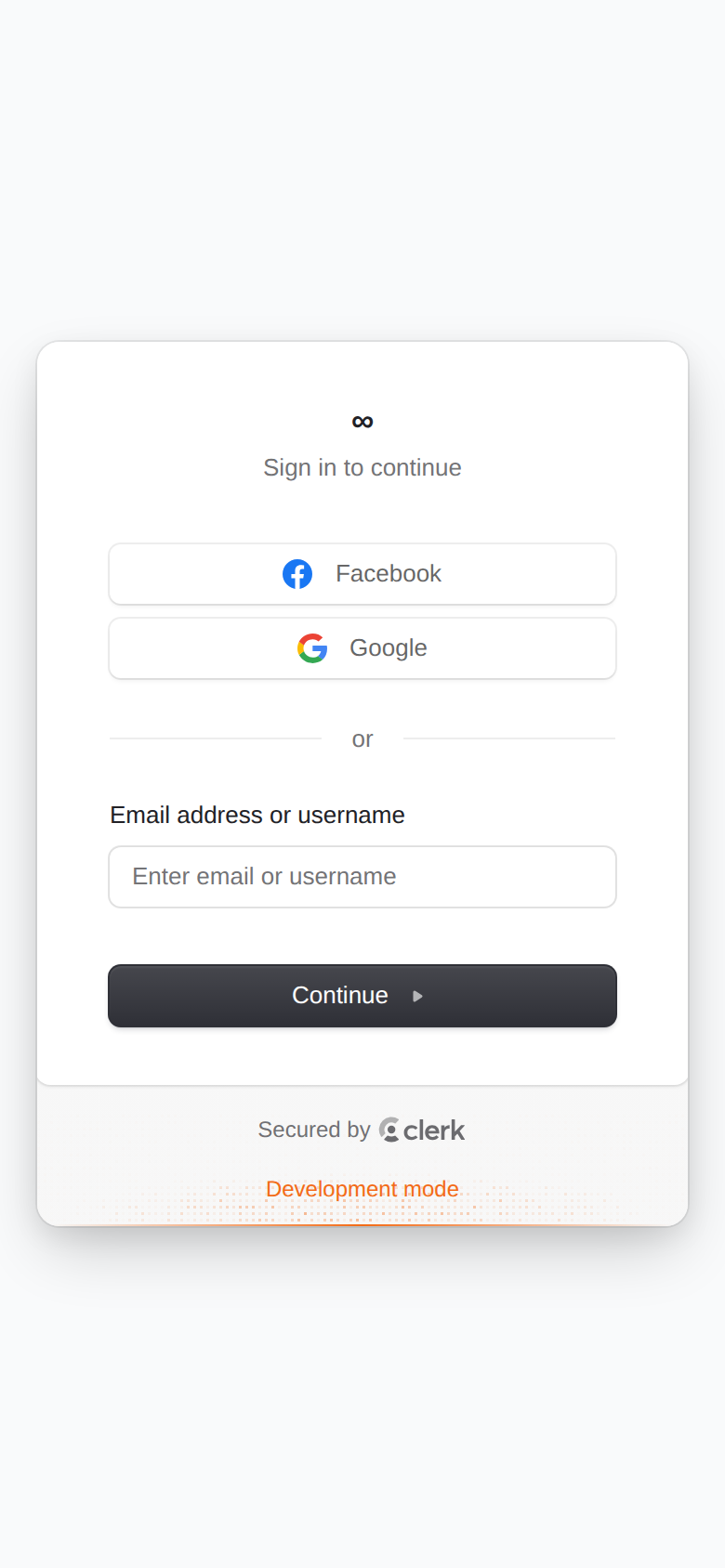
On a desktop
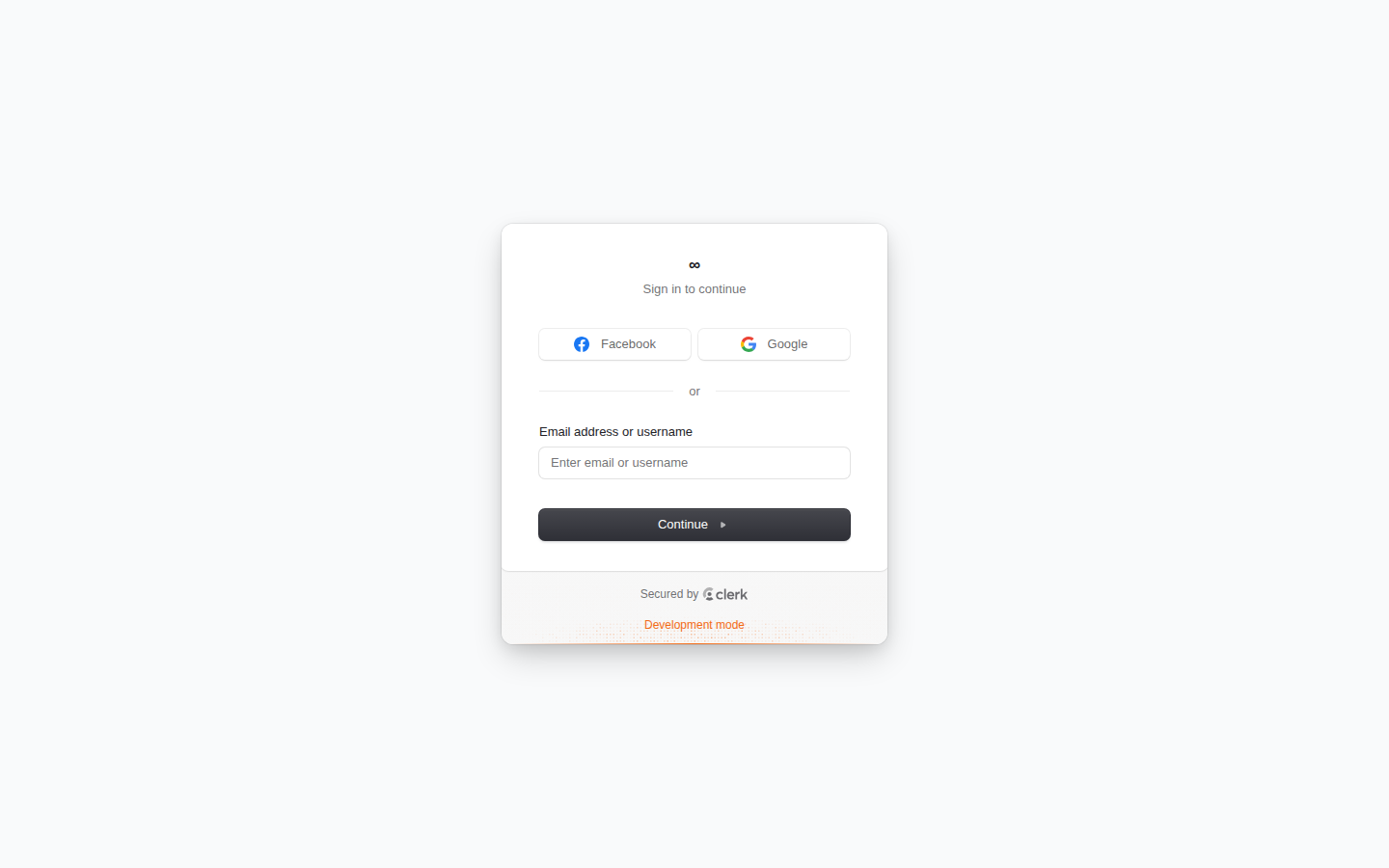
What you'll see: the sign-in screen, asking for your email address.
Your first screen (Inbox)
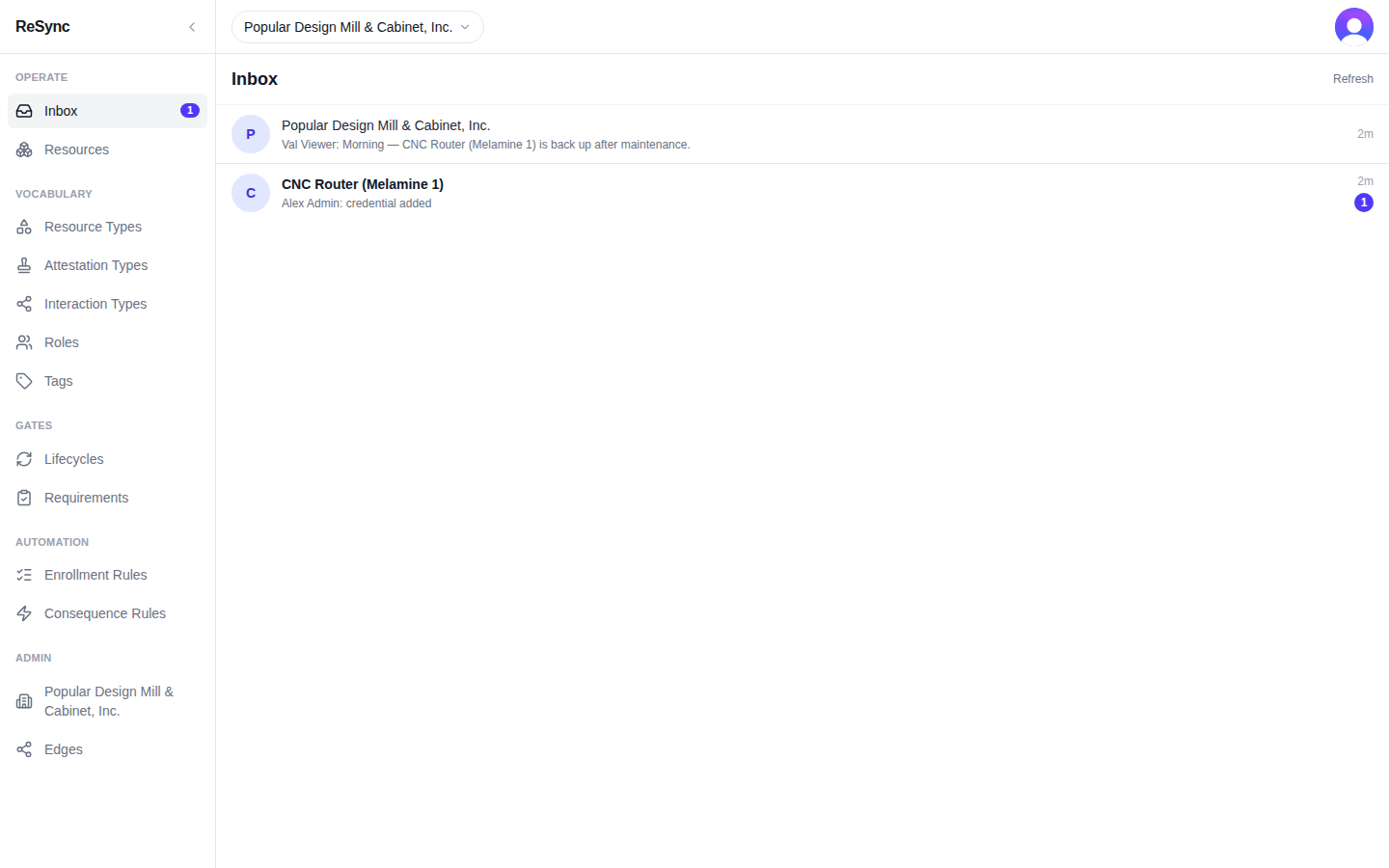
After you sign in, the app opens on Inbox: threads and activity that need your attention.
On your first day it says "Nothing yet." That is expected — nothing has happened that involves you yet. Lines appear here as people message you and as things you are part of change. Tap Refresh to check again.
On a phone, Inbox is the first slot of the bottom bar. On a desktop, it is in the rail down the left side.
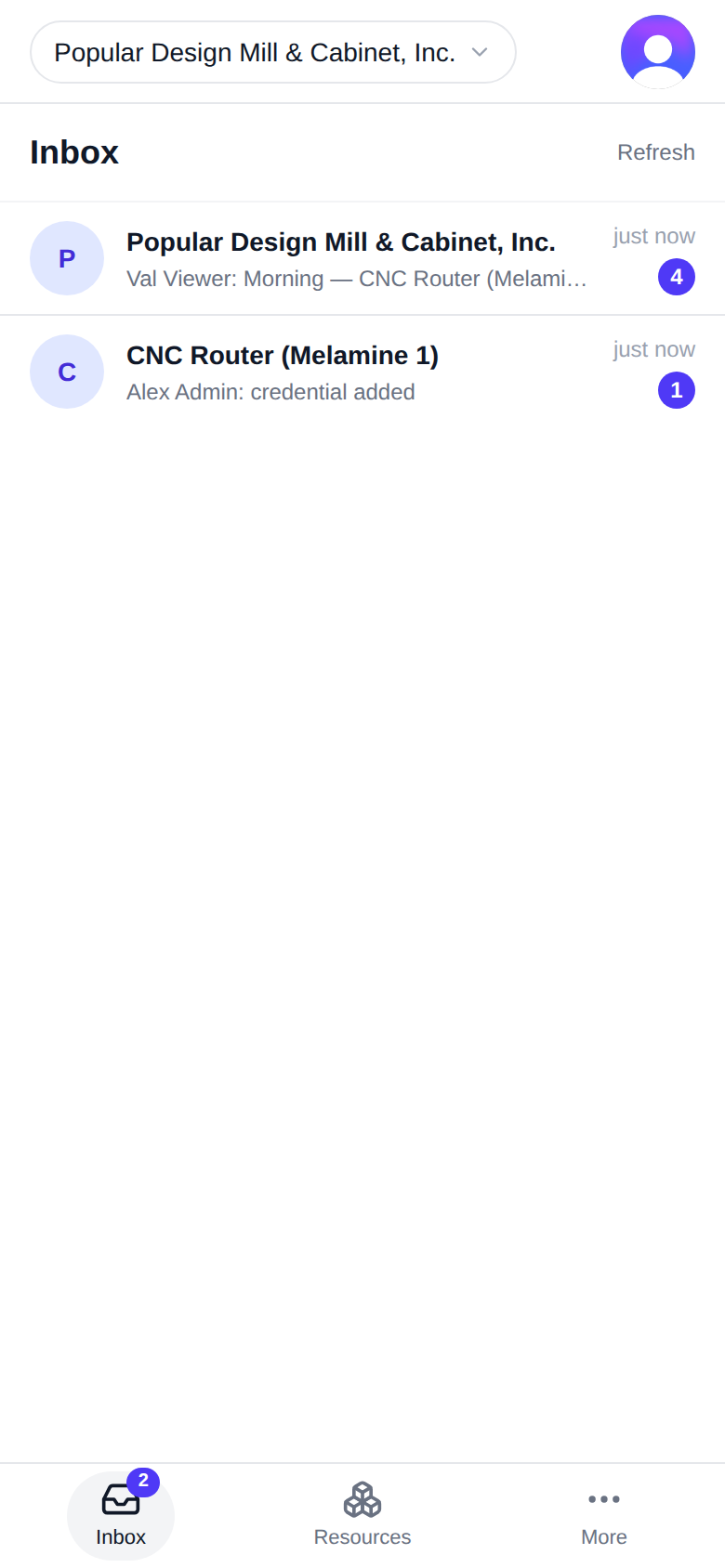
On a desktop
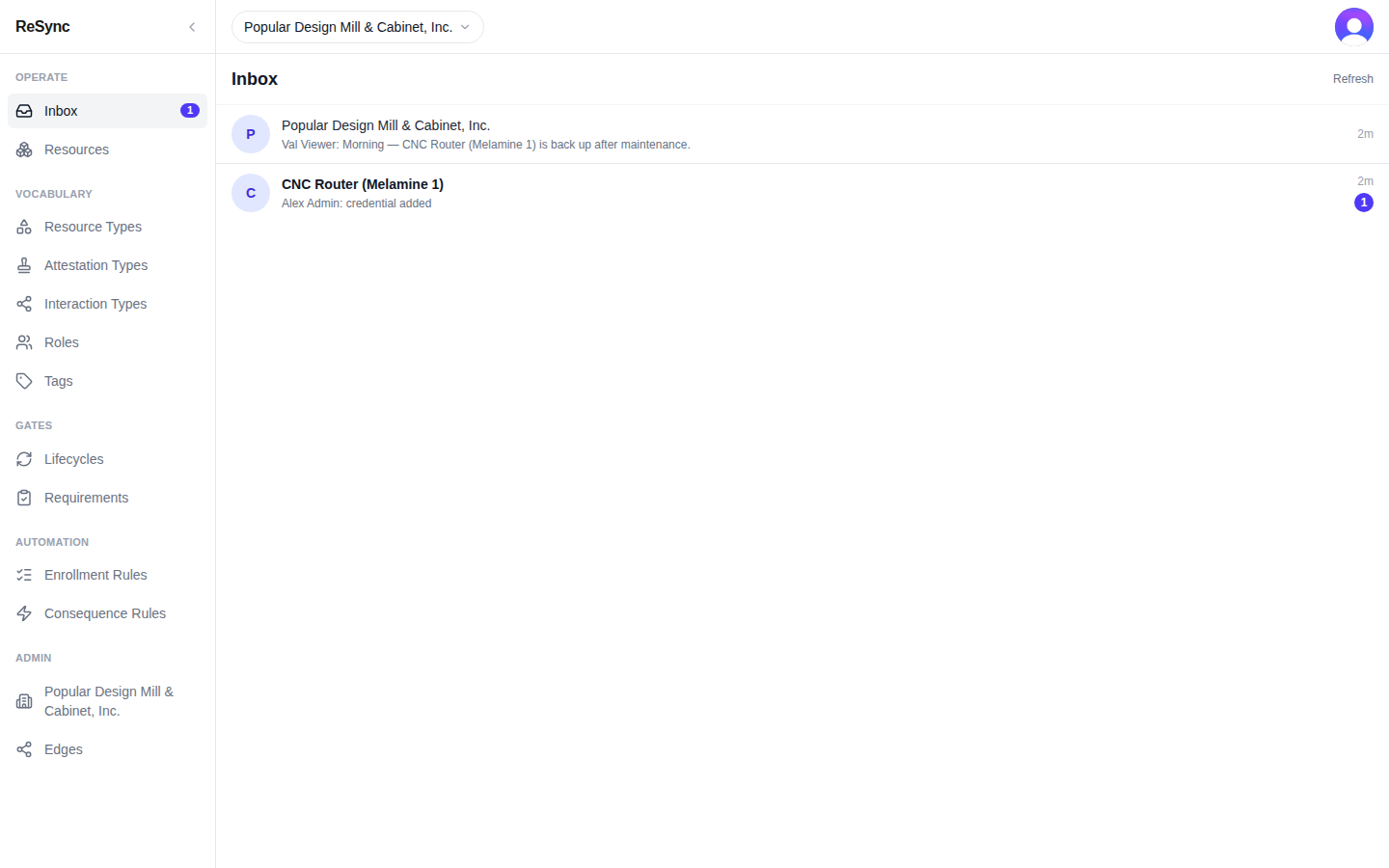
What you'll see: the Inbox heading with Refresh, and either "Nothing yet." or a list of lines, each starting with the name of the person who acted.
Switch workspace (Personal / your org)
The name at the top of the screen is your workspace — the place you are working in. Tap it to open Switch workspace.
- Tap the workspace name at the top of the screen.
- In Switch workspace, tap Personal or your organization's name. Each row is tagged "Personal" or "Org".
Lists such as Resources and Resource Types show what belongs to the workspace you picked.
While Personal is selected you may see "Personal modeling is off on this instance — your personal space is read-only." Your personal space exists, but you can't create or change things in it here; switch to your organization to work.
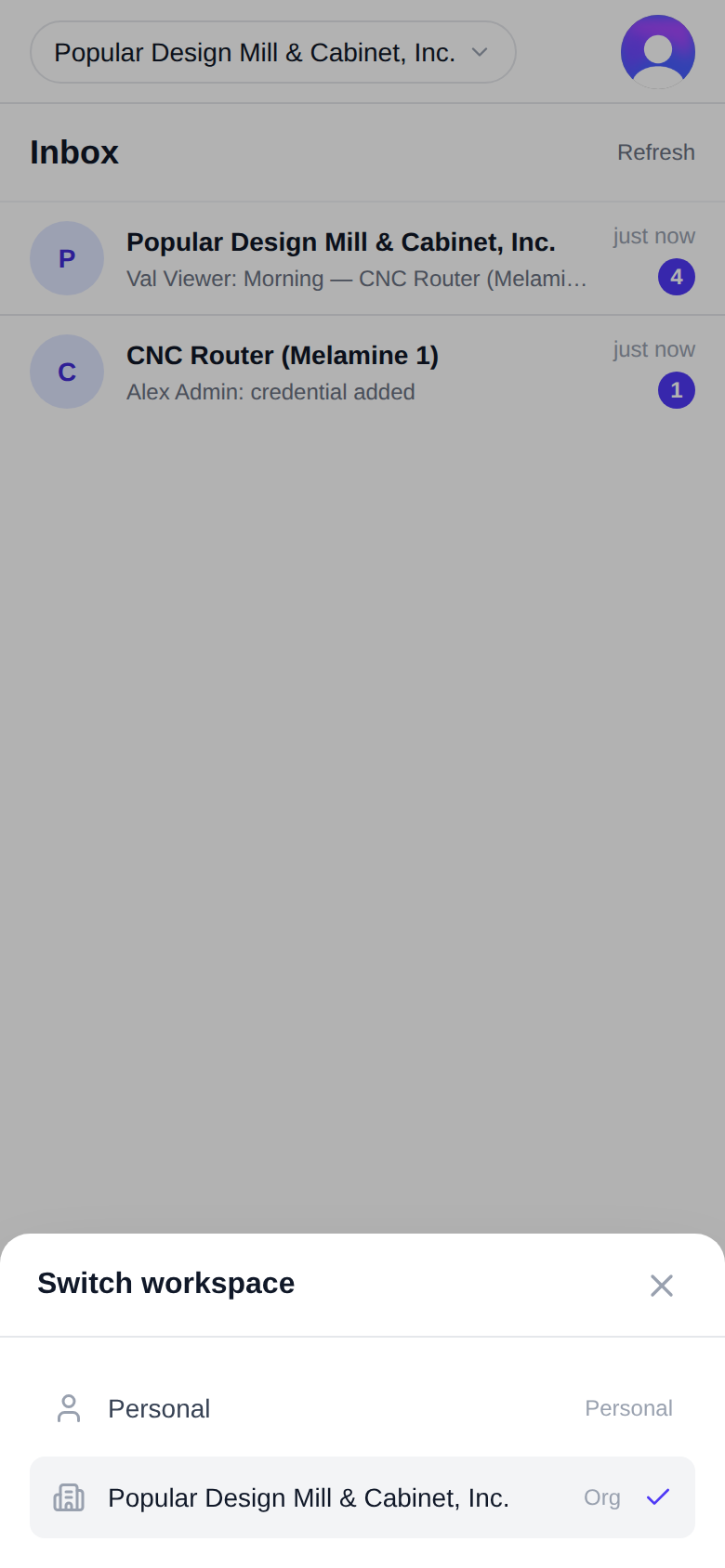
On a desktop
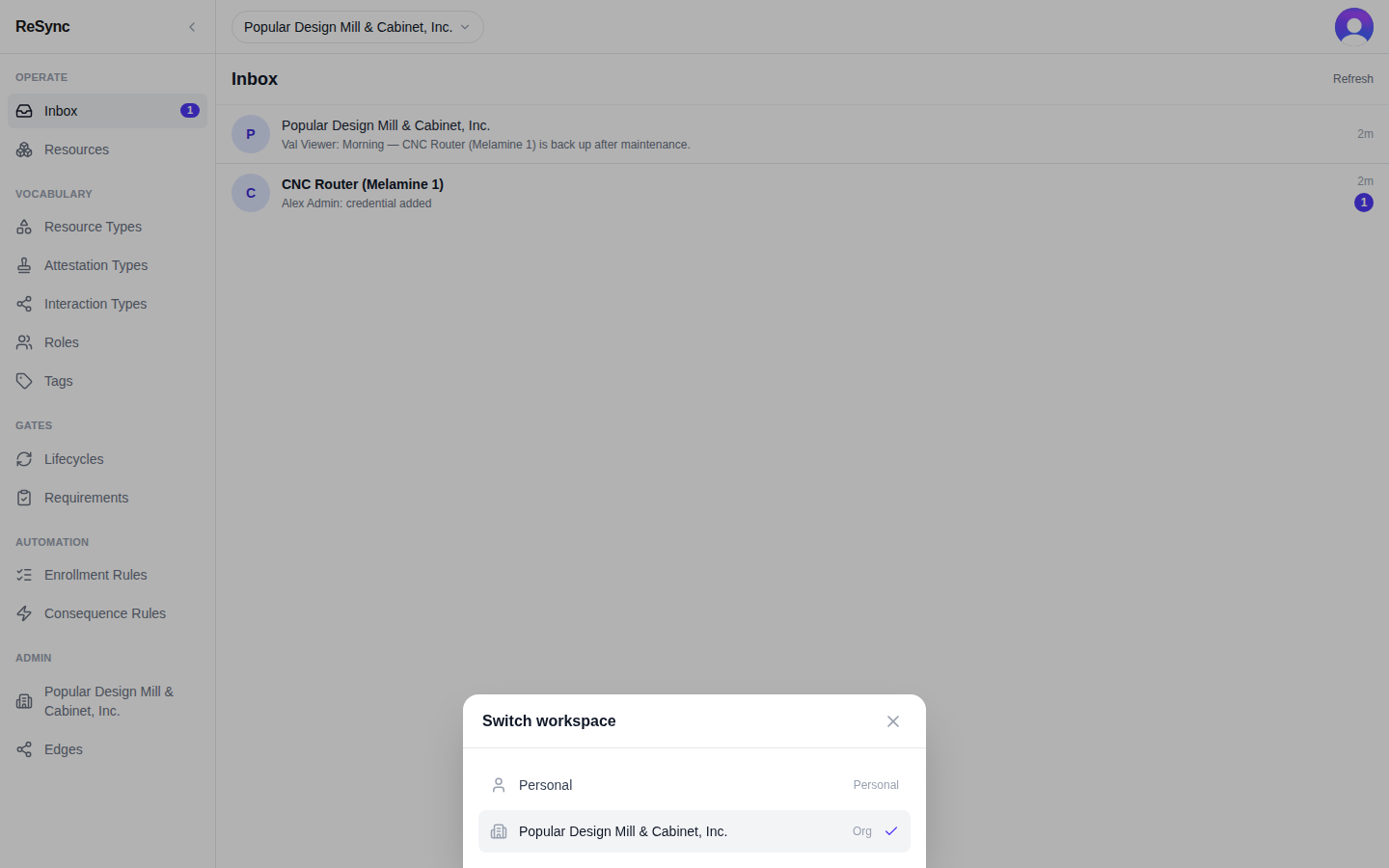
What you'll see: a sheet titled Switch workspace, with Personal first and then each organization you belong to.
Find your organization (More → Admin → org name)
Your organization has a wall of its own, reached from the Admin section.
- Switch to your organization (above).
- Tap More in the bottom bar.
- Under Admin, tap your organization's name — "Your organization's wall — members, grants, apps, credentials."
On a desktop, the same item is the first entry under Admin in the rail.
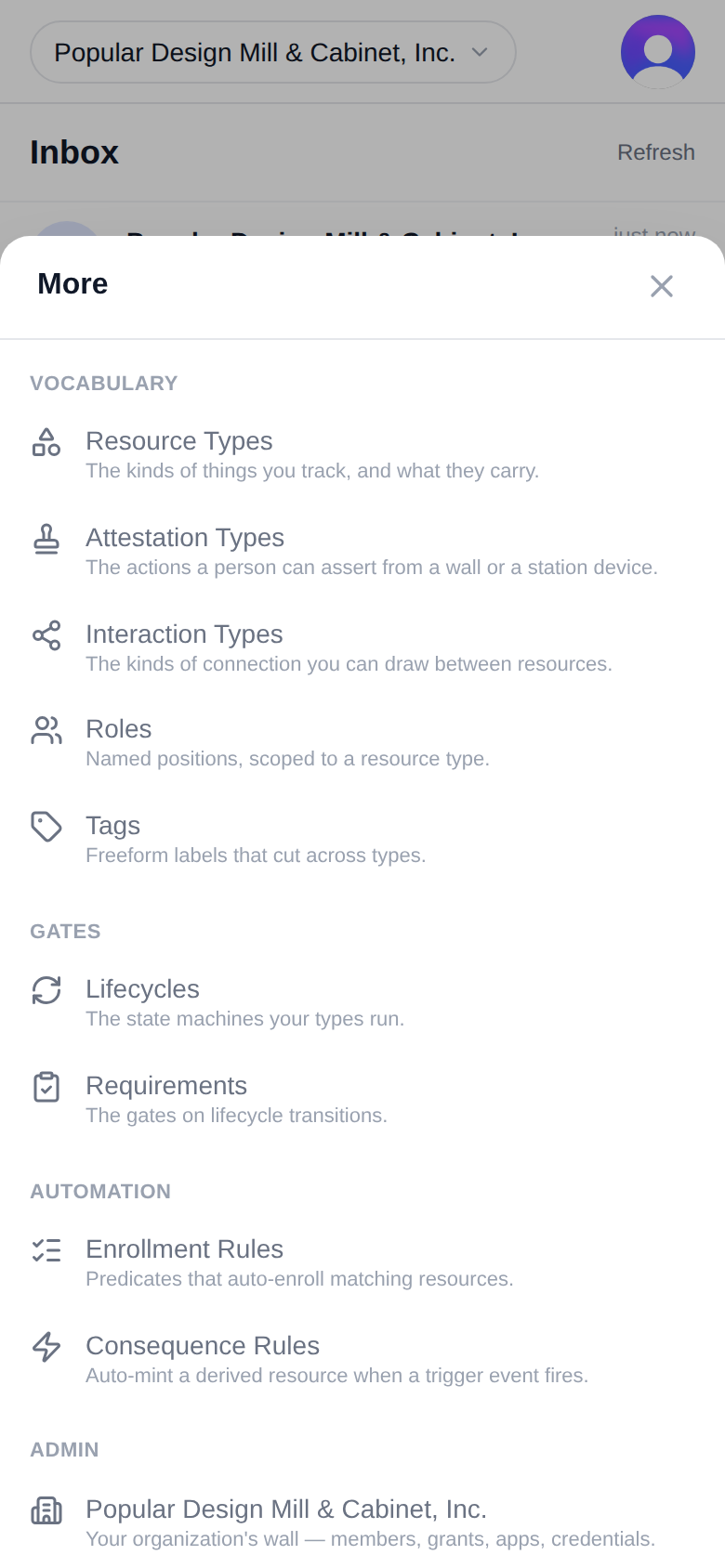
On a desktop
What you'll see: the More sheet, with the Admin section listing your organization's name above Edges.
If you don't see your organization yet
If Switch workspace shows only Personal, you are not a member of an organization yet. An administrator adds you, and they can only do that after you have signed in once — the screen they use says "Add someone after they've signed in once."
- Sign in once, so your account exists.
- Tell your organization's administrator you have signed in, and give them the email address you used.
- When they have added you, open Switch workspace again; your organization is listed.