Your organization's wall
This page covers your organization's wall: what each tab shows, and what you see on the "Access" tab as a member or as an admin.
What the wall is
Your organization is a resource like any other, so it has a wall. Reach it from More → Admin → your organization's name (desktop: the rail's Admin section).
At the top of the wall:
- the back arrow, which returns you to where you came from;
- the organization's name, with "Organization" — its type — underneath;
- Owns →, which opens Resources filtered to what the organization owns ("Owned by {name}").
Below the header, the Operate / Model toggle picks which set of tabs you see. Operate is for following and working; Model is for how the organization is set up.
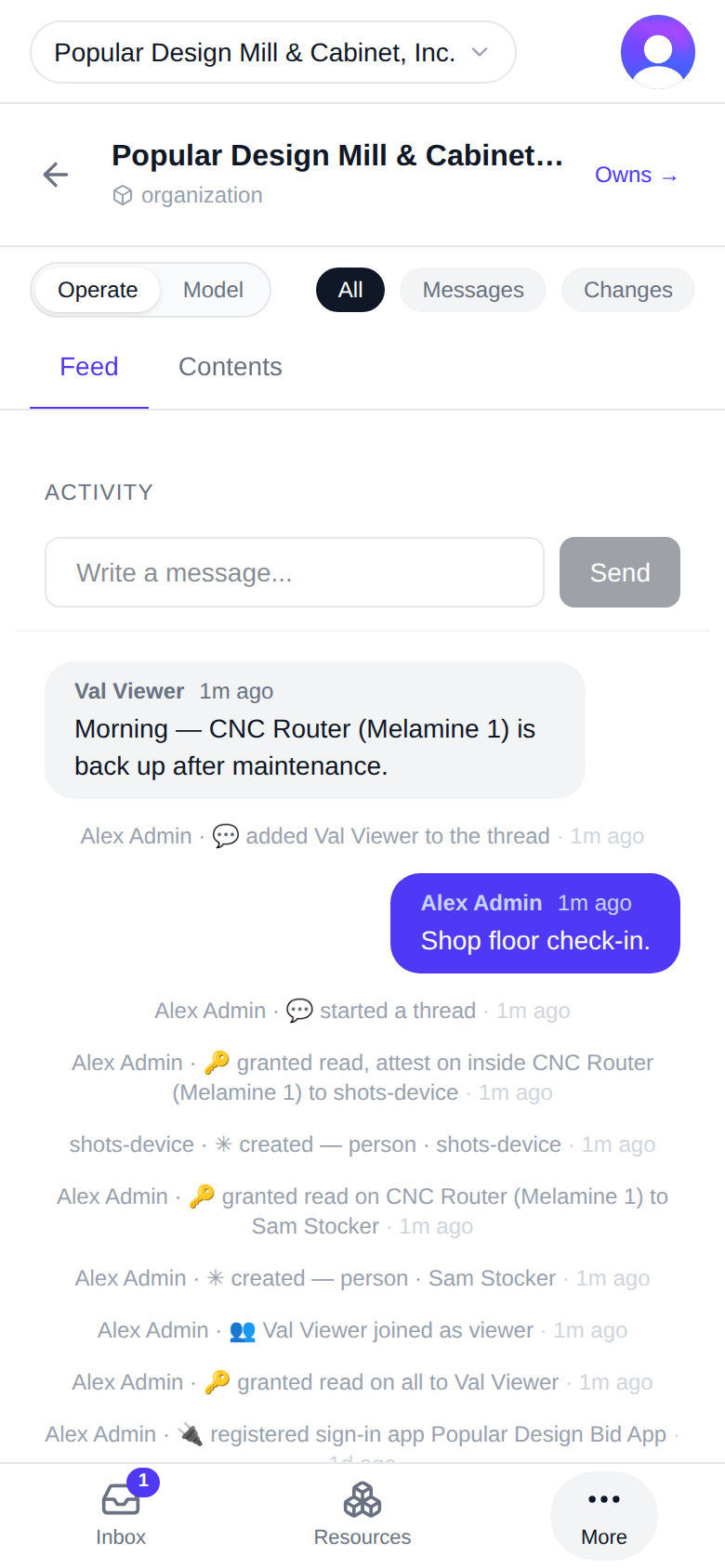
On a desktop
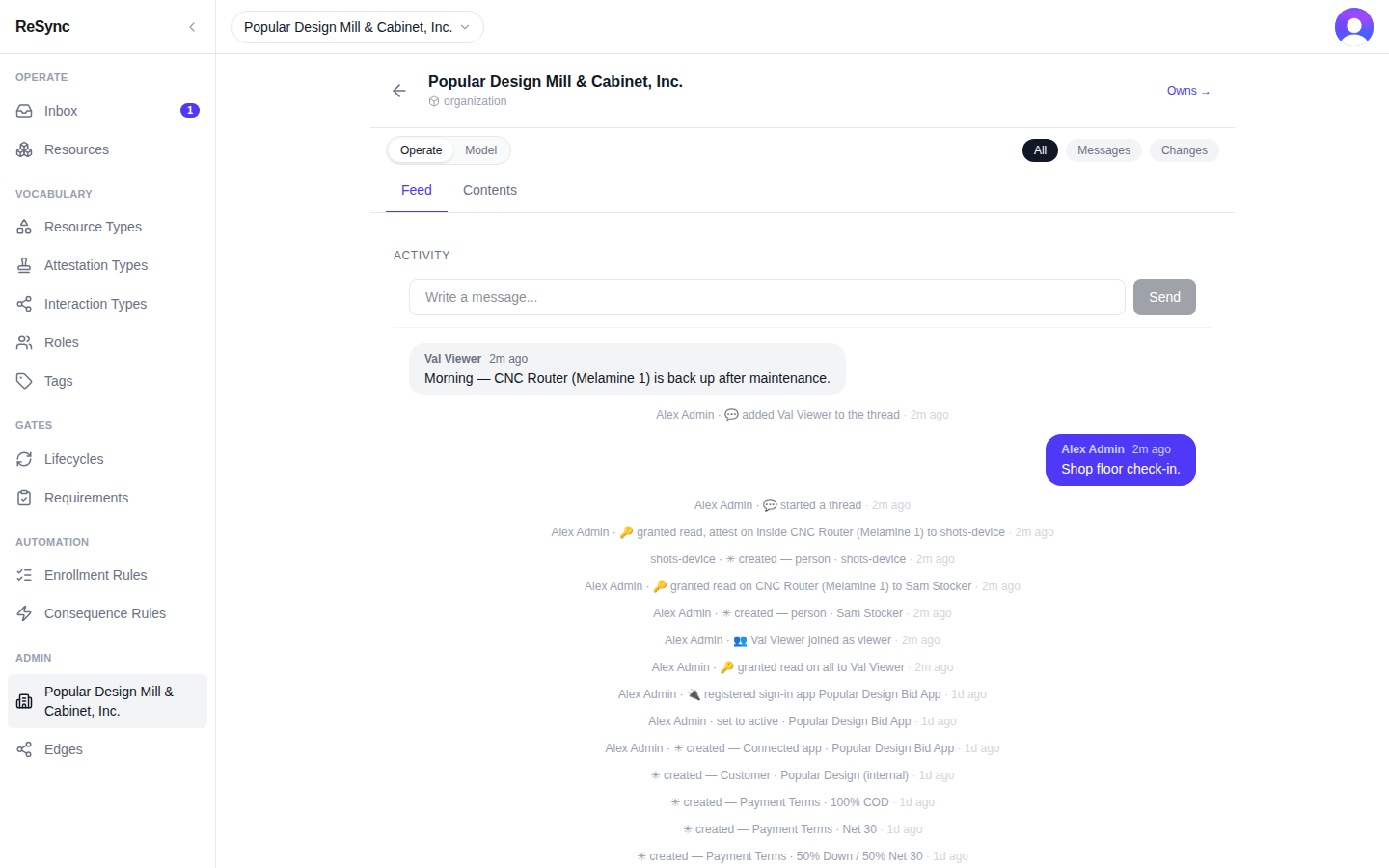
What you'll see: the organization's name and "Organization", Owns →, and the Operate / Model toggle with Operate selected.
Operate: Feed and Contents
Feed is the organization's activity. Under Activity, each line starts with who acted, then what happened. The chips All, Messages and Changes narrow the list. To post, type in "Write a message..." and tap Send.
Lines you will meet early, as they render:
- "{name} · 👥 {person} joined as member" — someone was added to the organization with the member grant set.
- "{name} · 🔑 granted read, attest, write on all to {person}" — access was granted on everything the organization owns.
Contents lists what sits inside the organization. Use "Search contents…" to find an item, and Filters to narrow by type or status, change the sort, or include archived items.
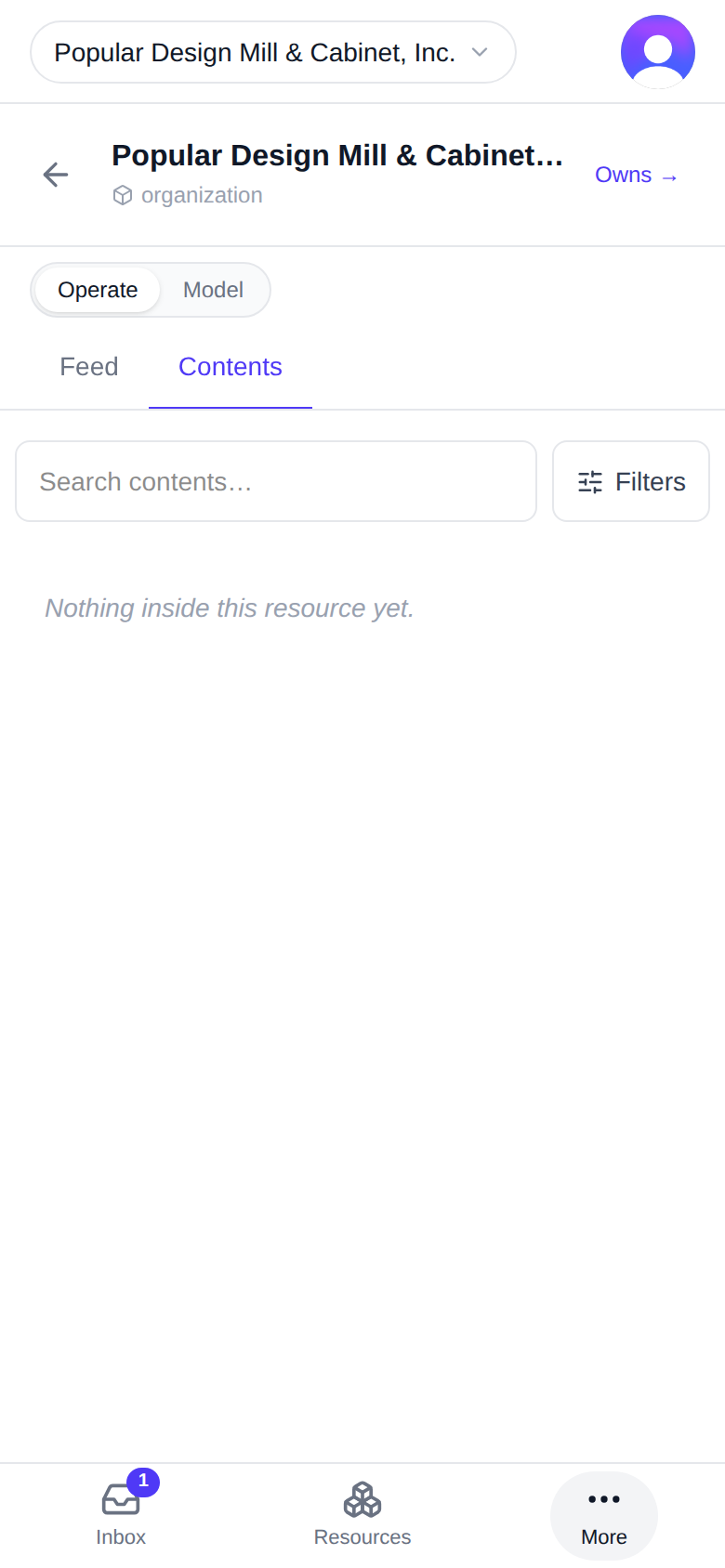
On a desktop
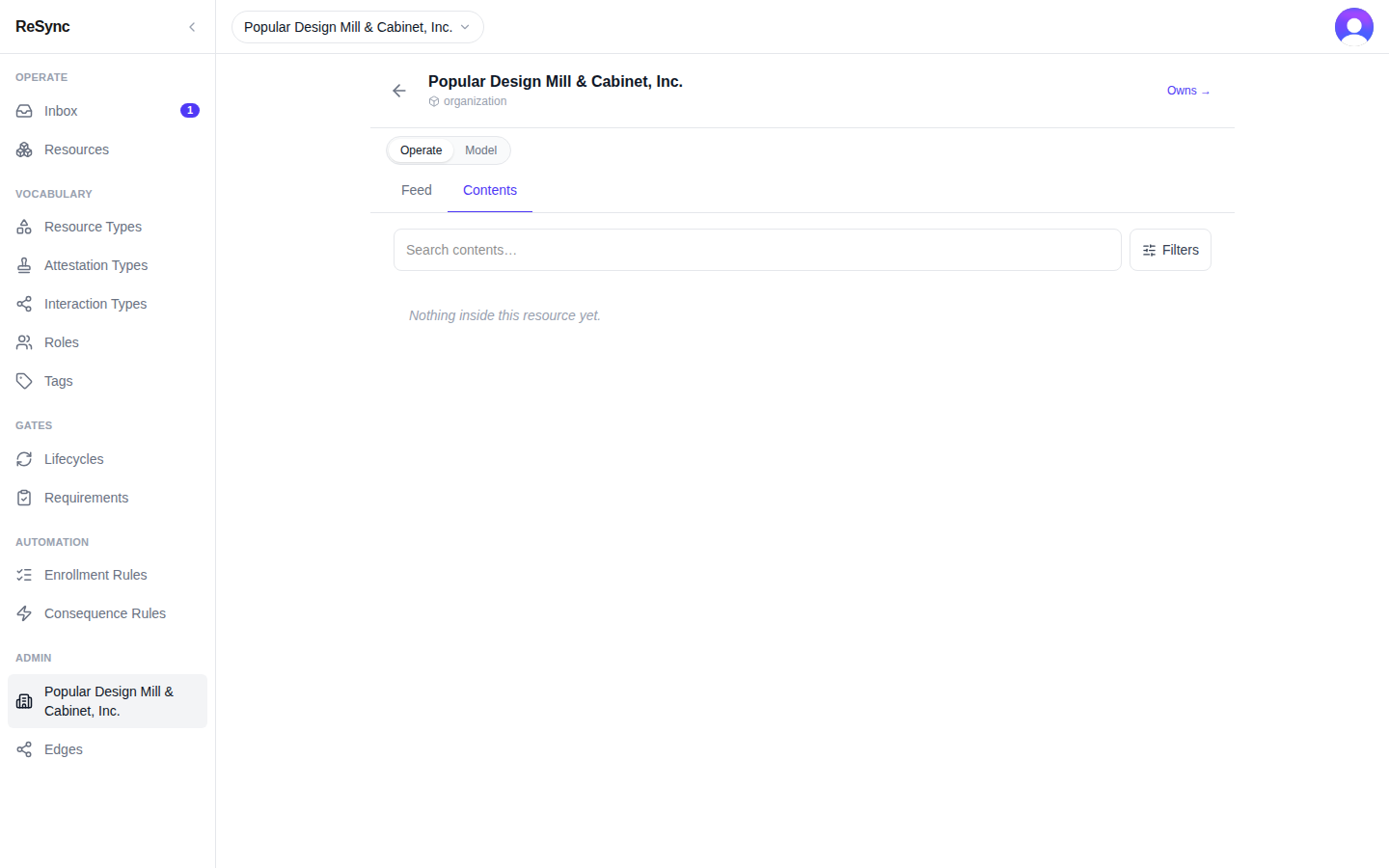
What you'll see: Activity with the All / Messages / Changes chips and the message box, or the Contents list with its search box and Filters.
Model: Details, Access
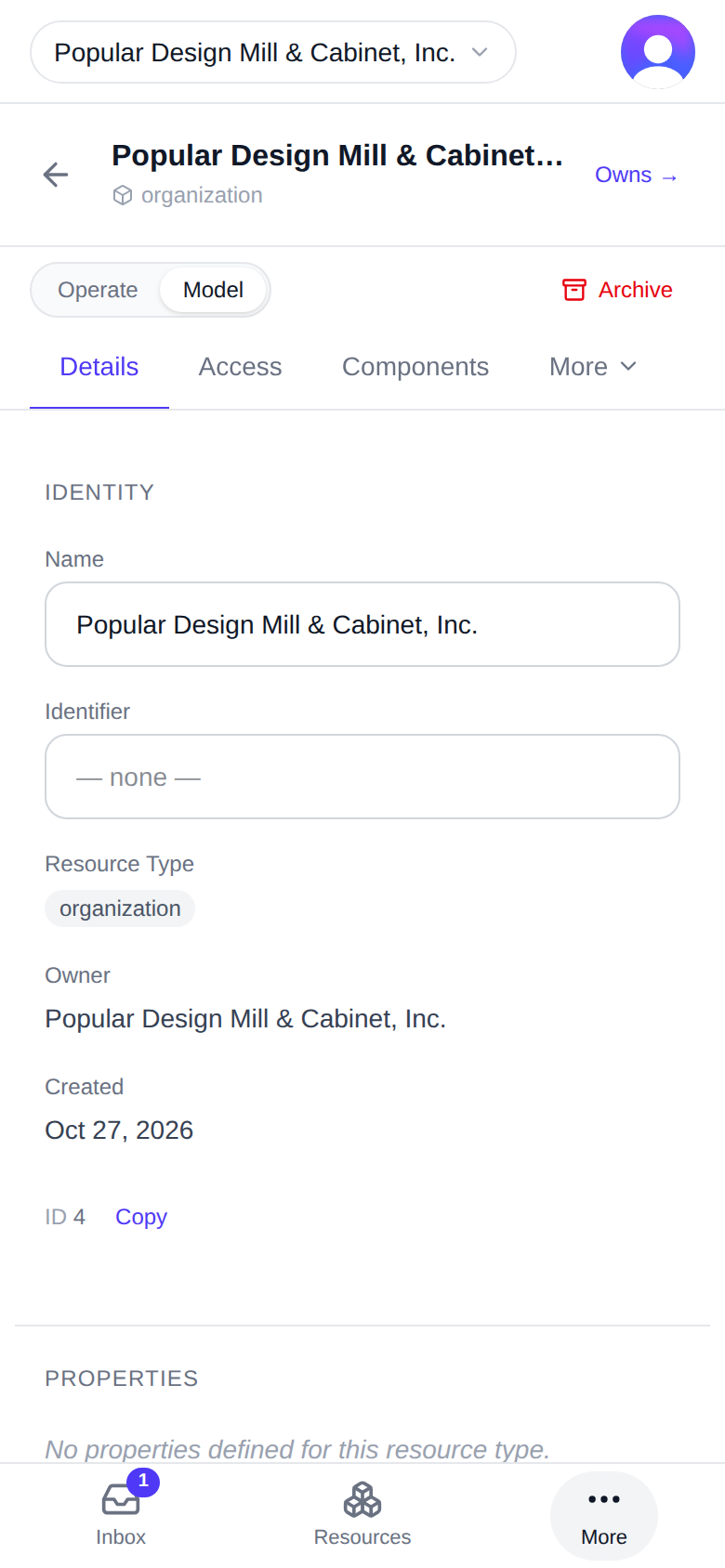
Details shows the organization's Identity — Name, Identifier, Resource Type, Owner, Created — and its Properties.
Access shows who belongs to the organization and, for admins, how access is handed out. What you see depends on your own access, as the next two sections describe.
Components and the other Model tabs work as they do on any resource — see A resource's wall.
On a desktop
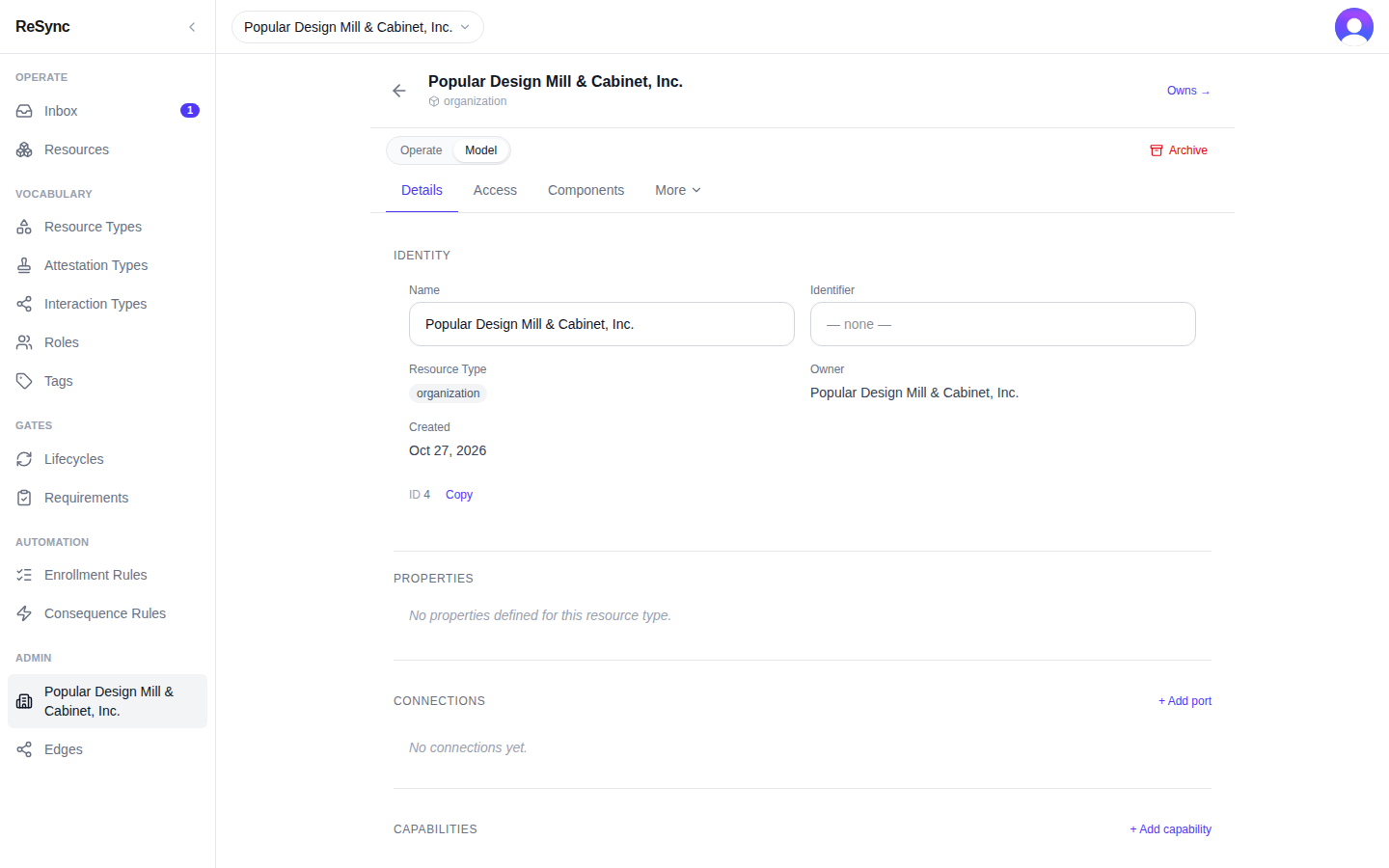
What you'll see: the Model tabs, with Details open on Identity.
Access as a member (Members roster)
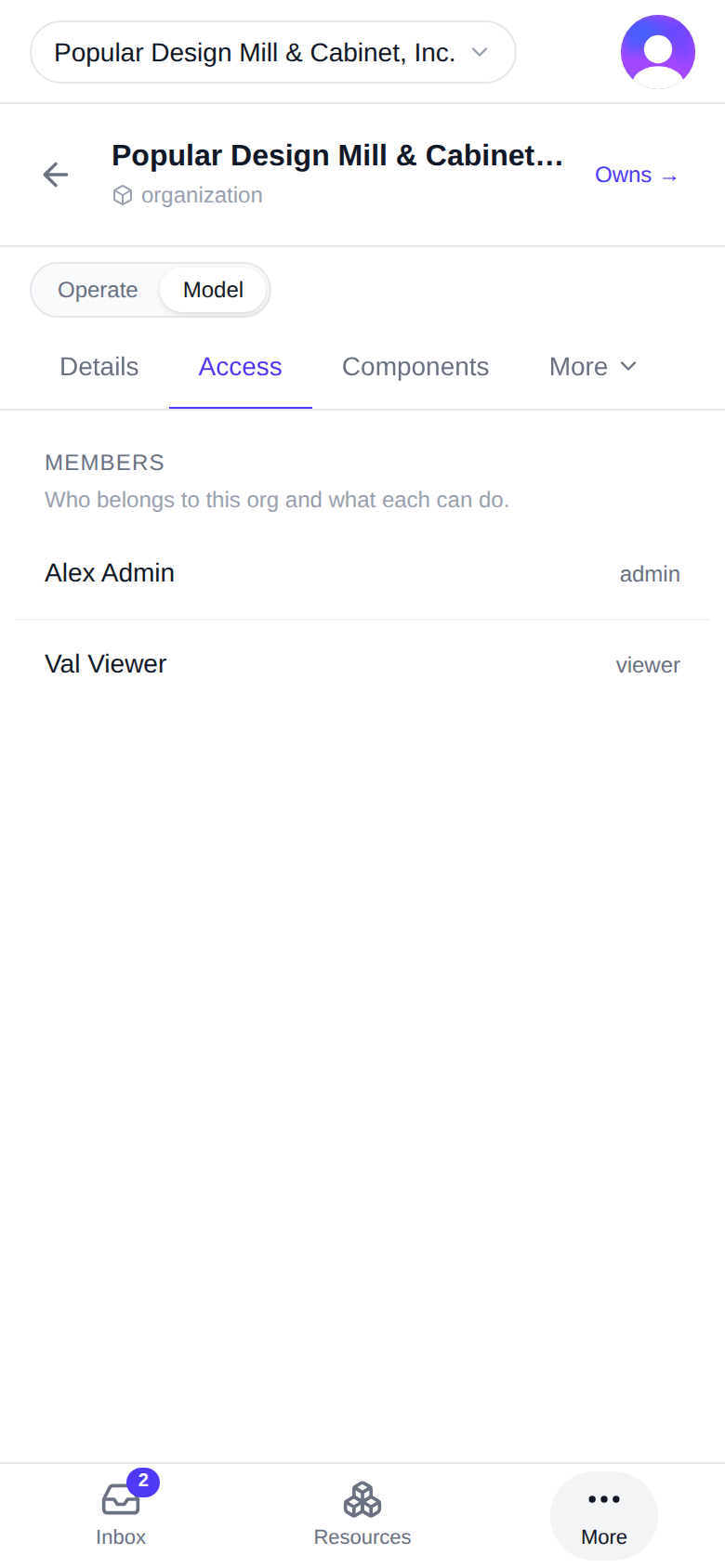
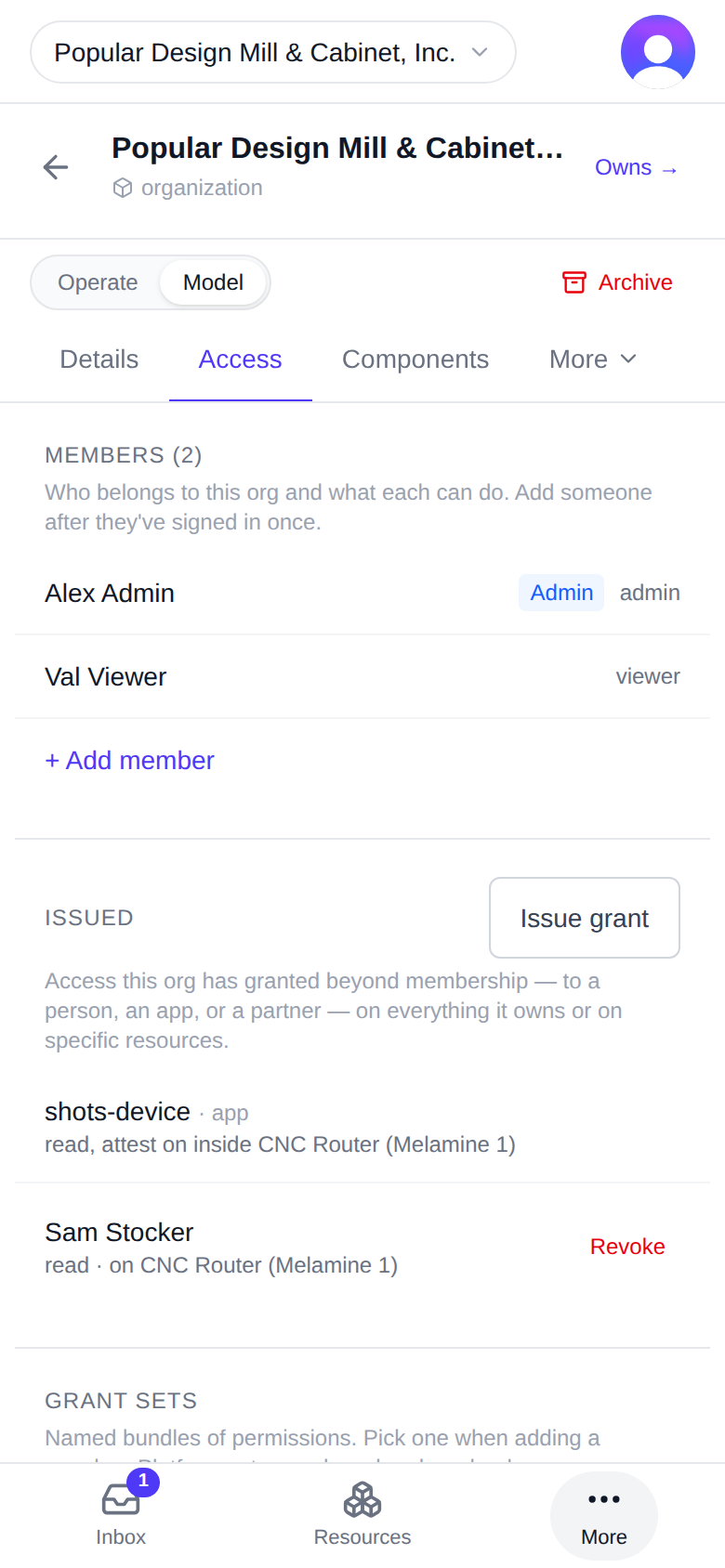
Who belongs to this org and what each can do.
As a member, Access holds one section, Members. Each row is a person, with their title if they have one and the name of their grant set (for example "member").
You can read this list but not change it; the admin sections described below do not appear for you.
On a desktop
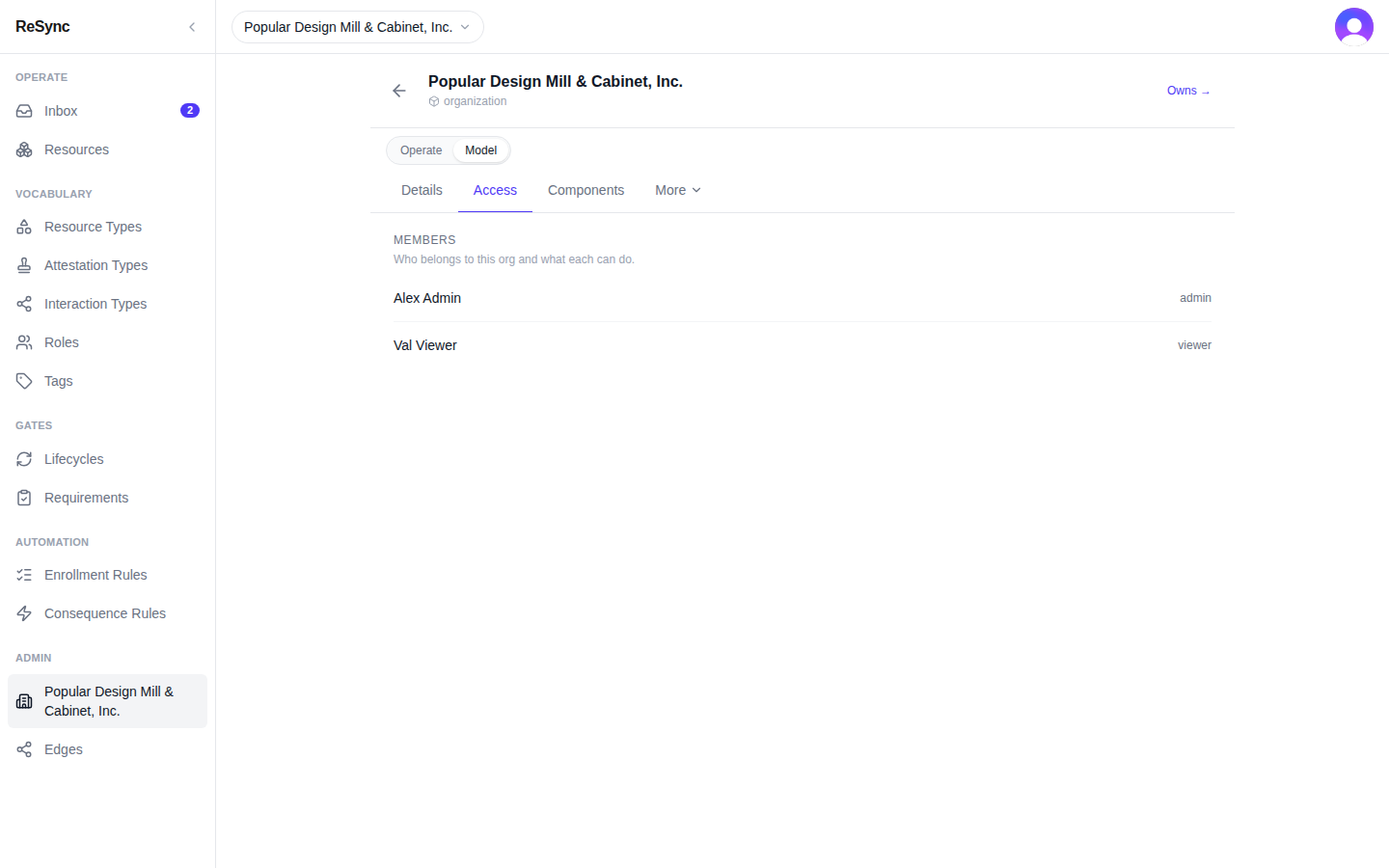
What you'll see: Members with the line "Who belongs to this org and what each can do." and one row per person.
Access as an admin
Admins see six sections on Access. Each opens with a line that says what it is for.
Members
Who belongs to this org and what each can do. Add someone after they've signed in once.
- + Add member opens Add member: enter their Email, pick a Grant set, add a Title (optional), and tap Add. If they have not signed in yet you'll see "No account with that email has signed in yet".
- Tap a member to open their sheet. Change set gives them a different grant set; Remove takes them out of the organization ("Remove {name} from this org? Their access from it ends now.").
Members who administer the organization carry an "Admin" chip.
On a desktop
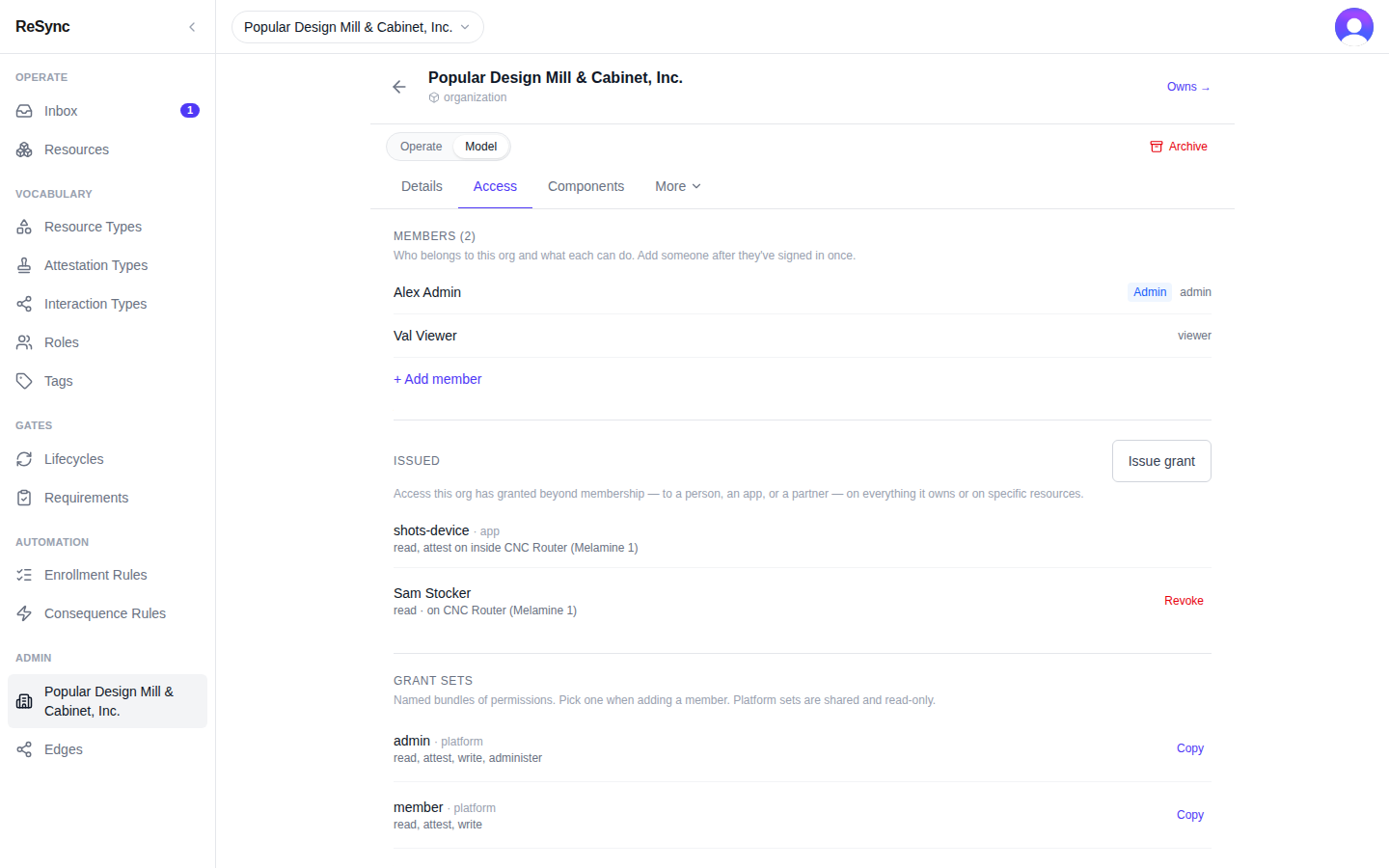
What you'll see: Members ({n}), + Add member, and one row per person.
Issued
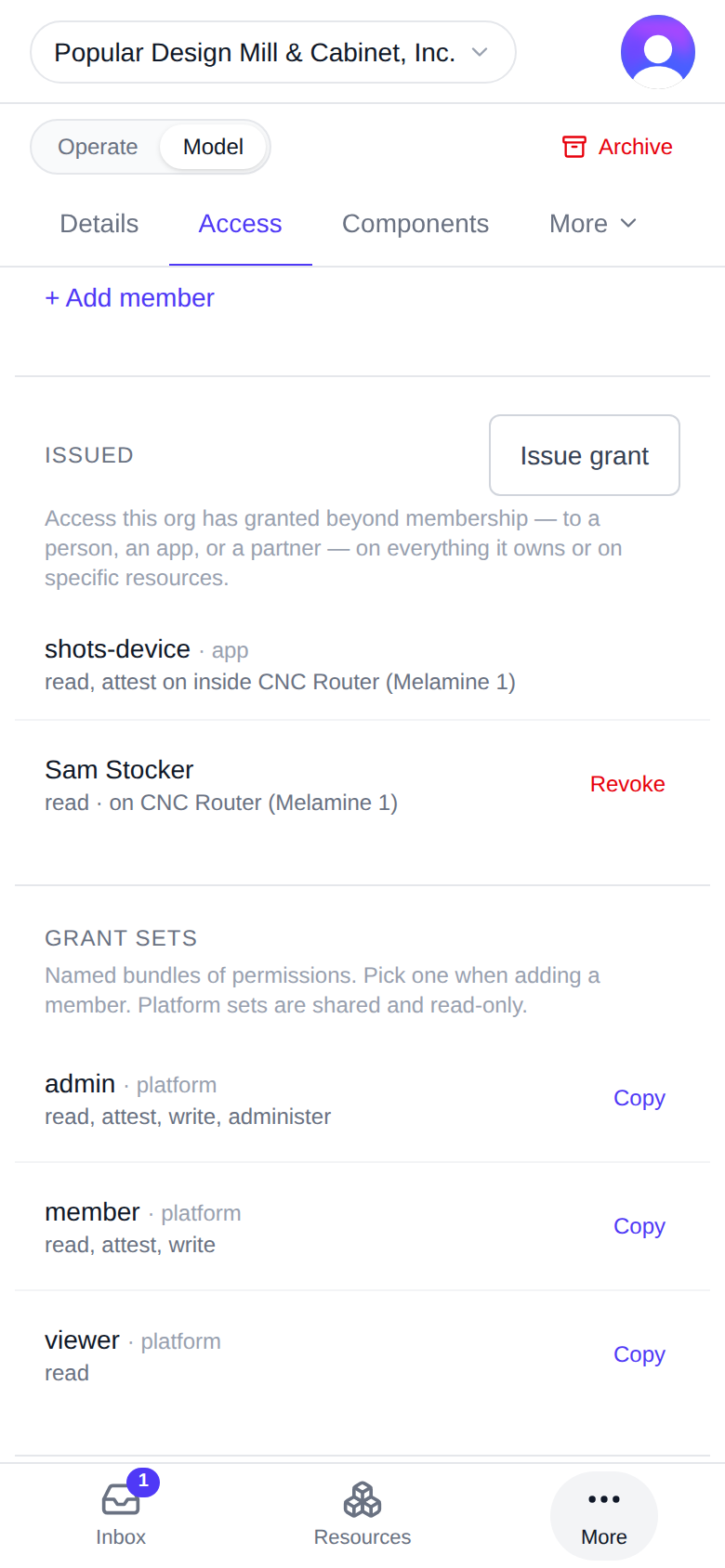
Access this org has granted beyond membership — to a person, an app, or a partner — on everything it owns or on specific resources.
Issue grant gives someone access outside a membership. Revoke on a row takes it away; the confirmation names who loses what ("Revoke this grant?").
On a desktop
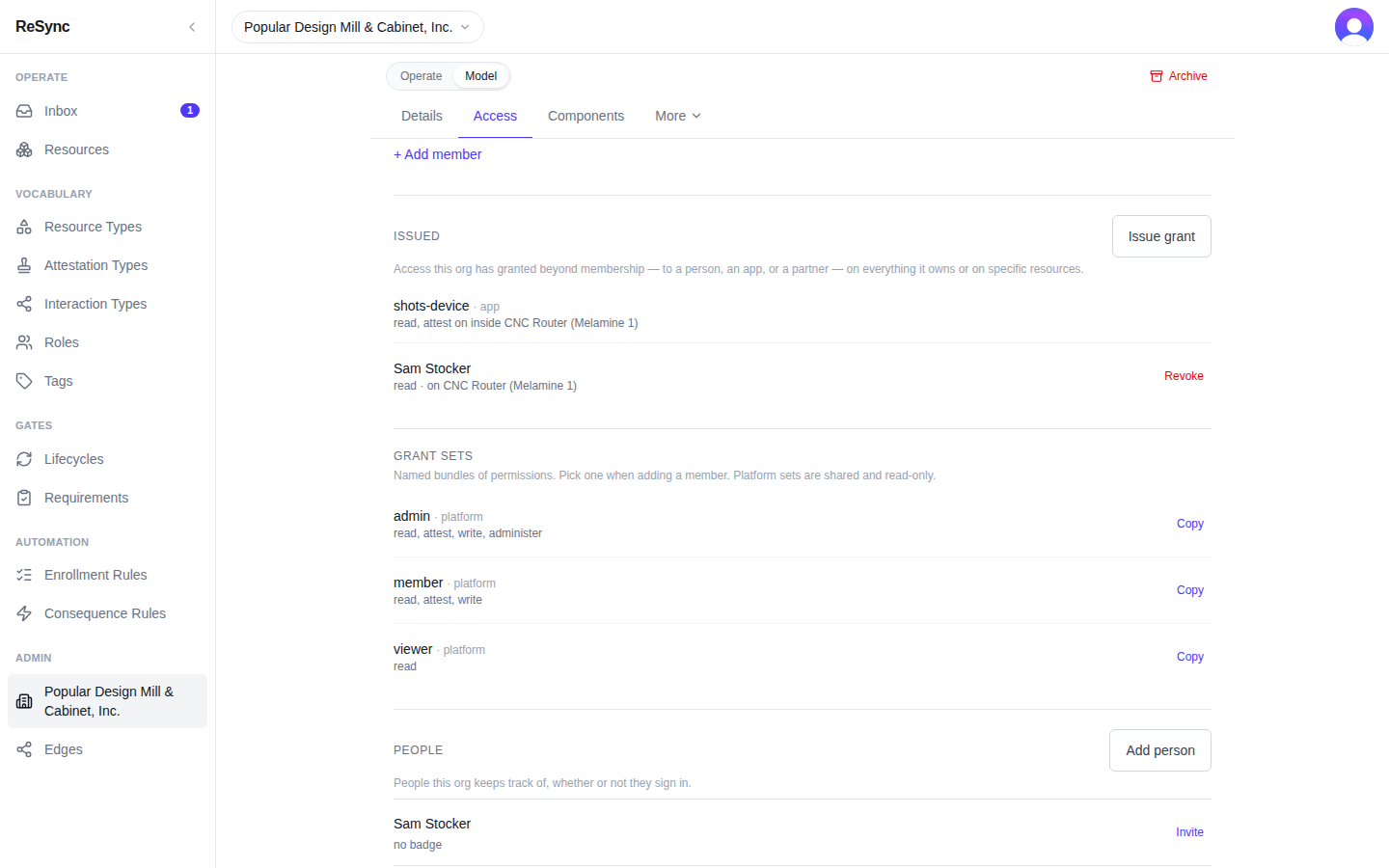
What you'll see: Issued with Issue grant, and either rows with Revoke or "Nothing issued yet."
Grant sets
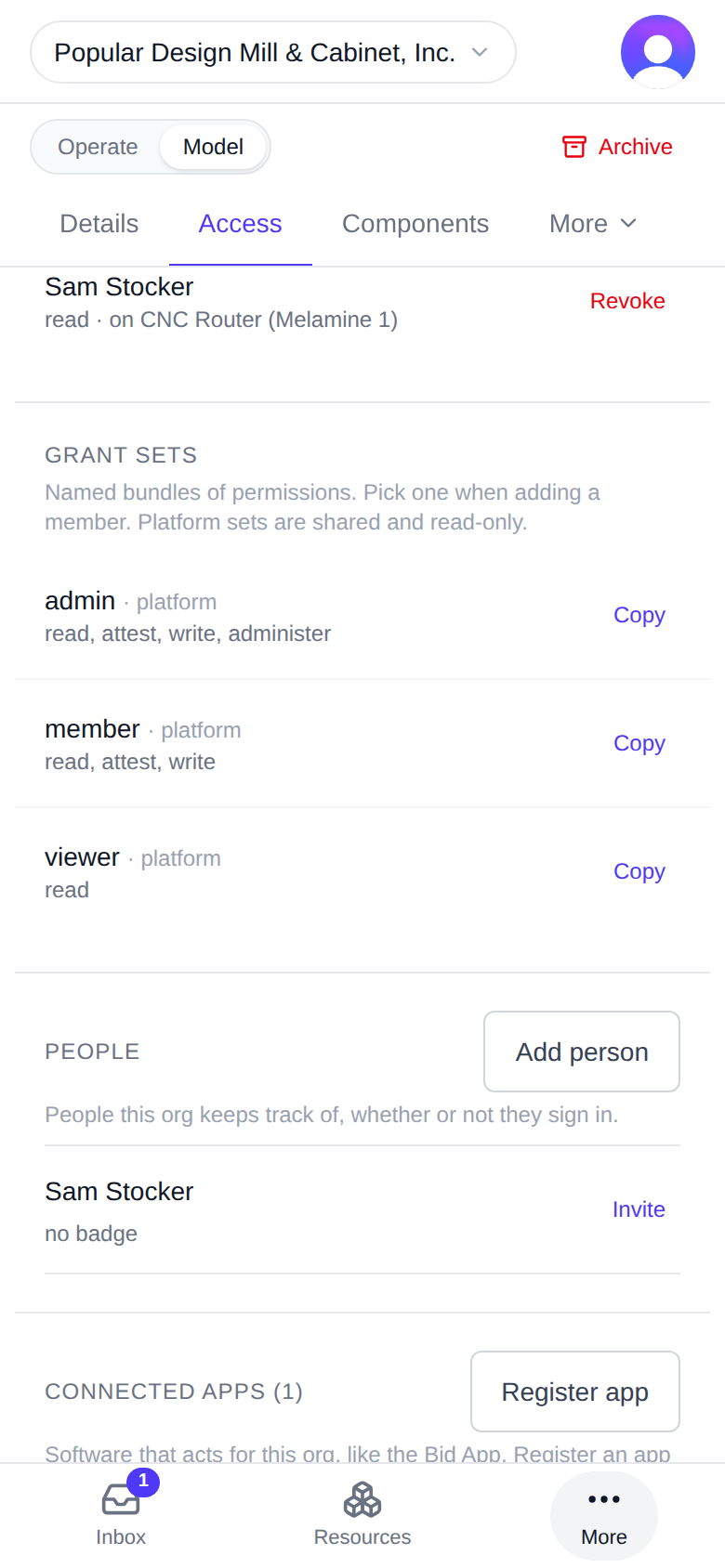
Named bundles of permissions. Pick one when adding a member. Platform sets are shared and read-only.
A platform set shows as "{name} · platform" and can't be changed. Copy makes your own editable version of a set under a new name.
On a desktop
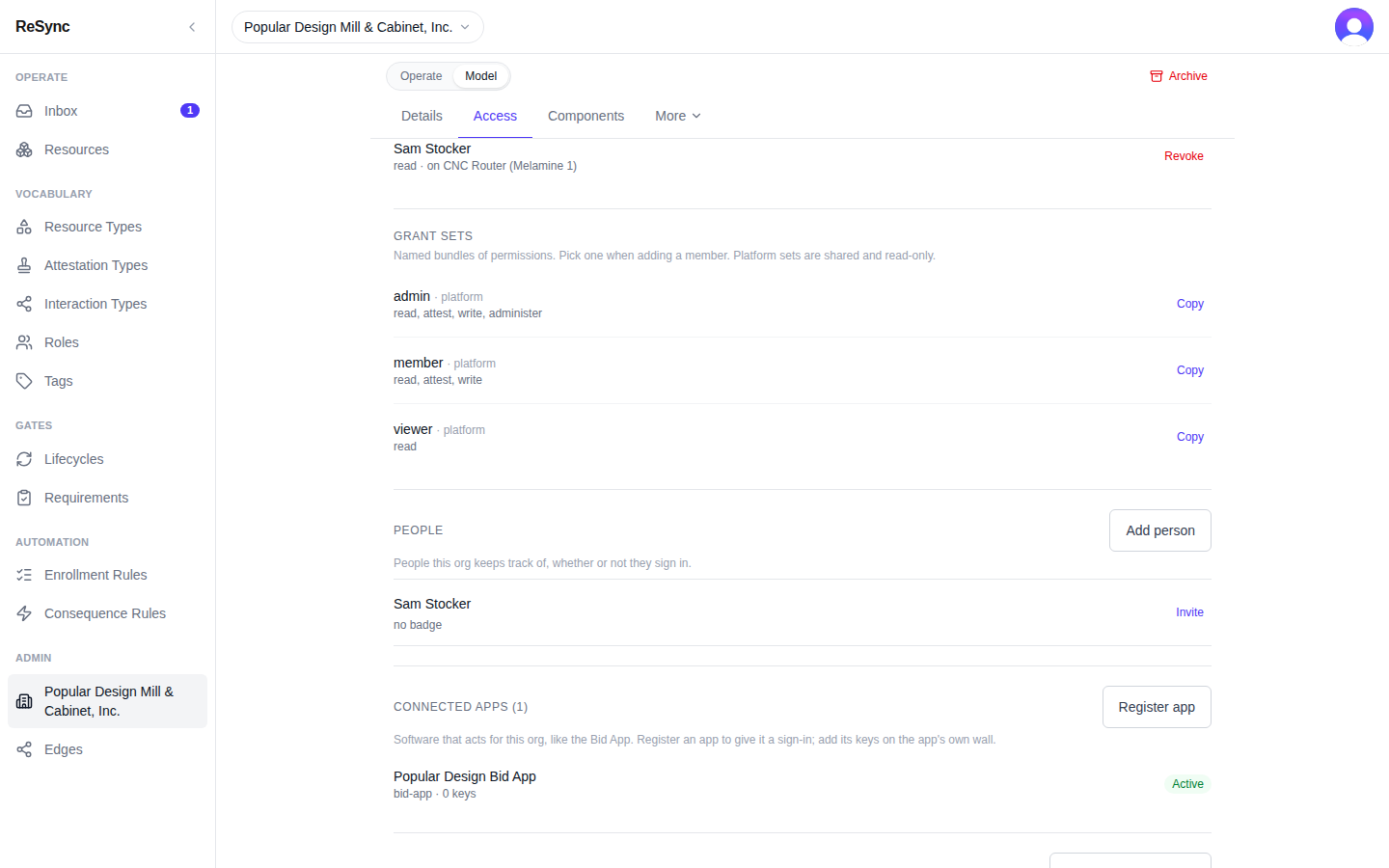
What you'll see: Grant sets, each row with Copy; platform sets marked "· platform".
People
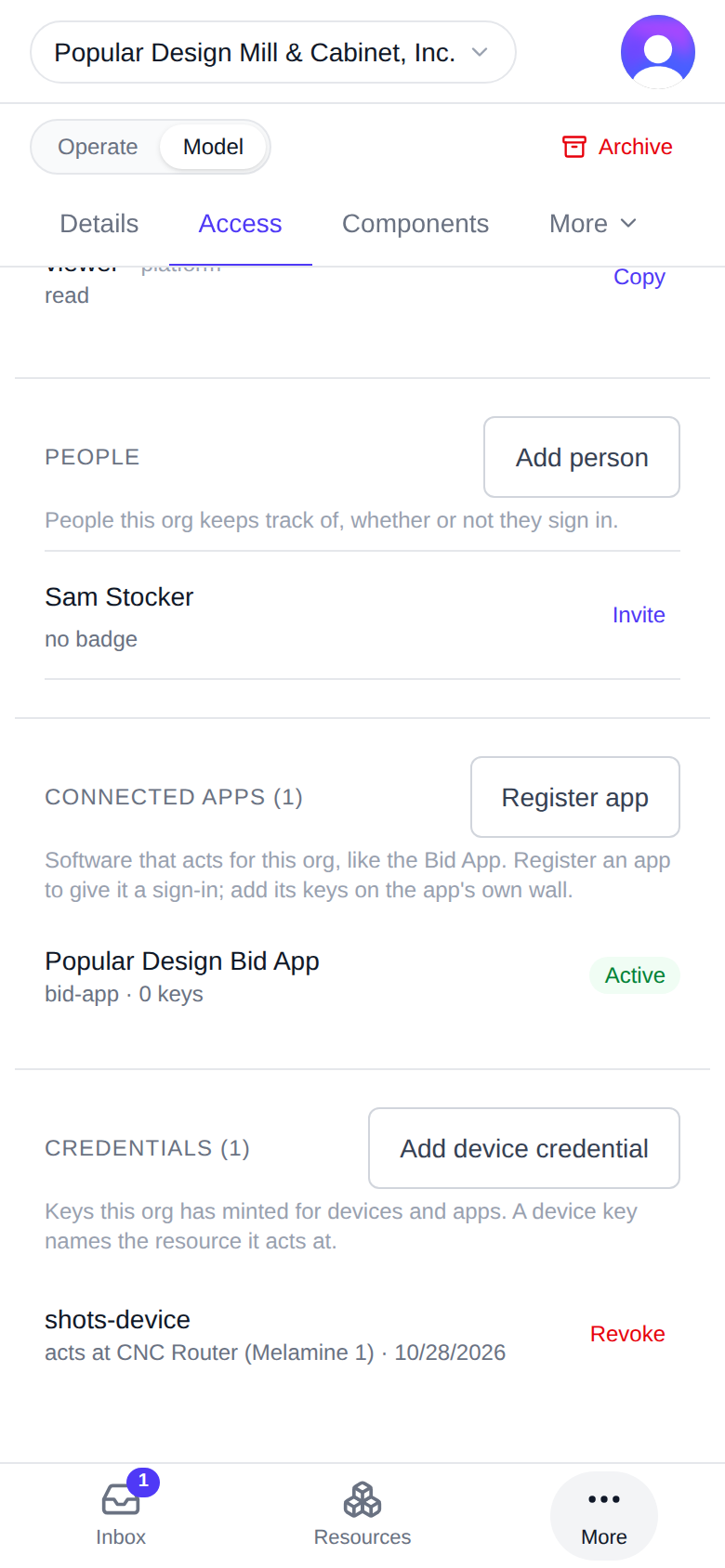
People this org keeps track of, whether or not they sign in.
- Add person records someone by name, with or without an account.
- Invite creates a link for that person to tie their own account to the record (Copy link, then send it).
- Unlink separates an account from the record again.
On a desktop
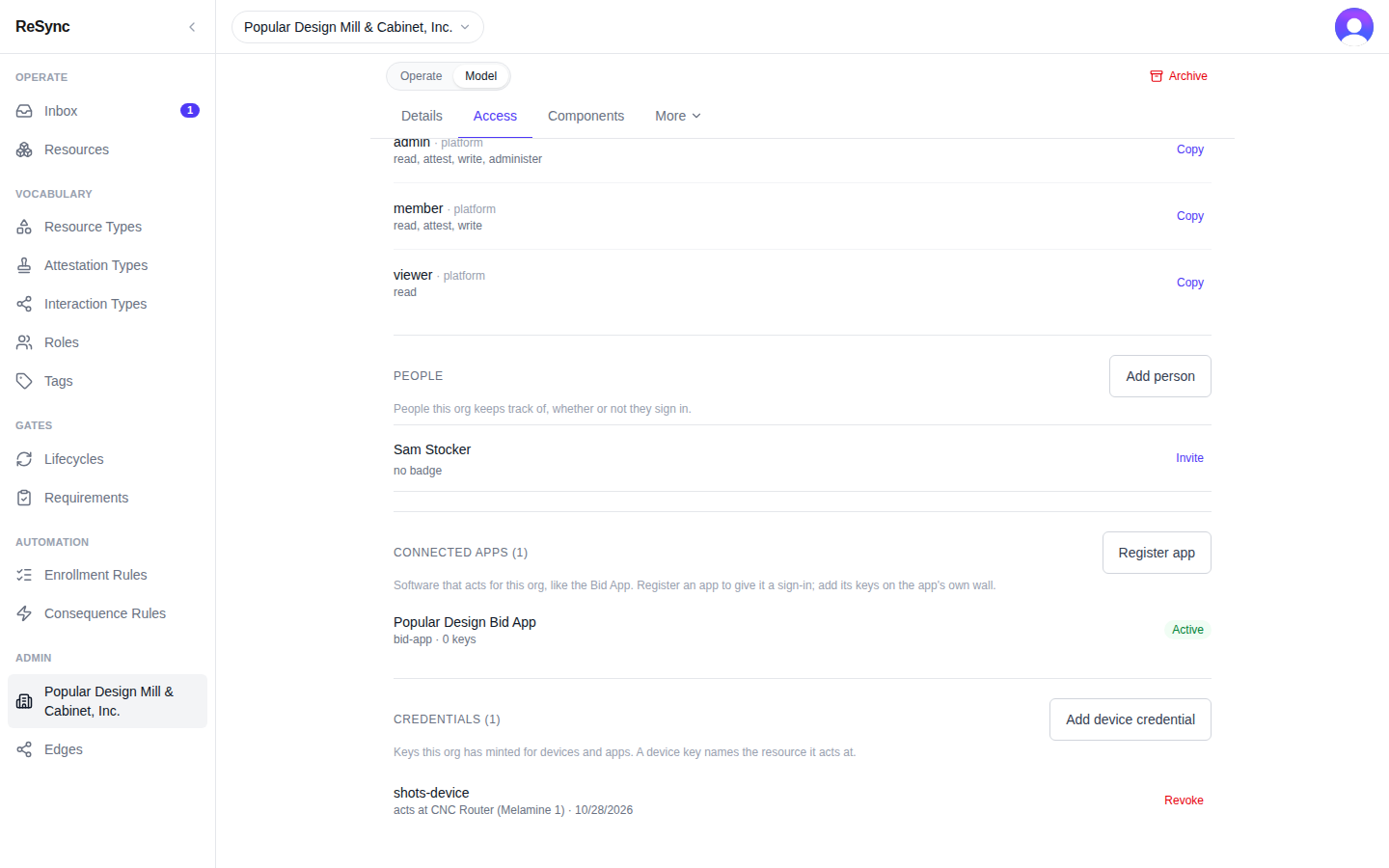
What you'll see: People with Add person, and per row Invite, Re-issue, Cancel or Unlink.
Connected apps
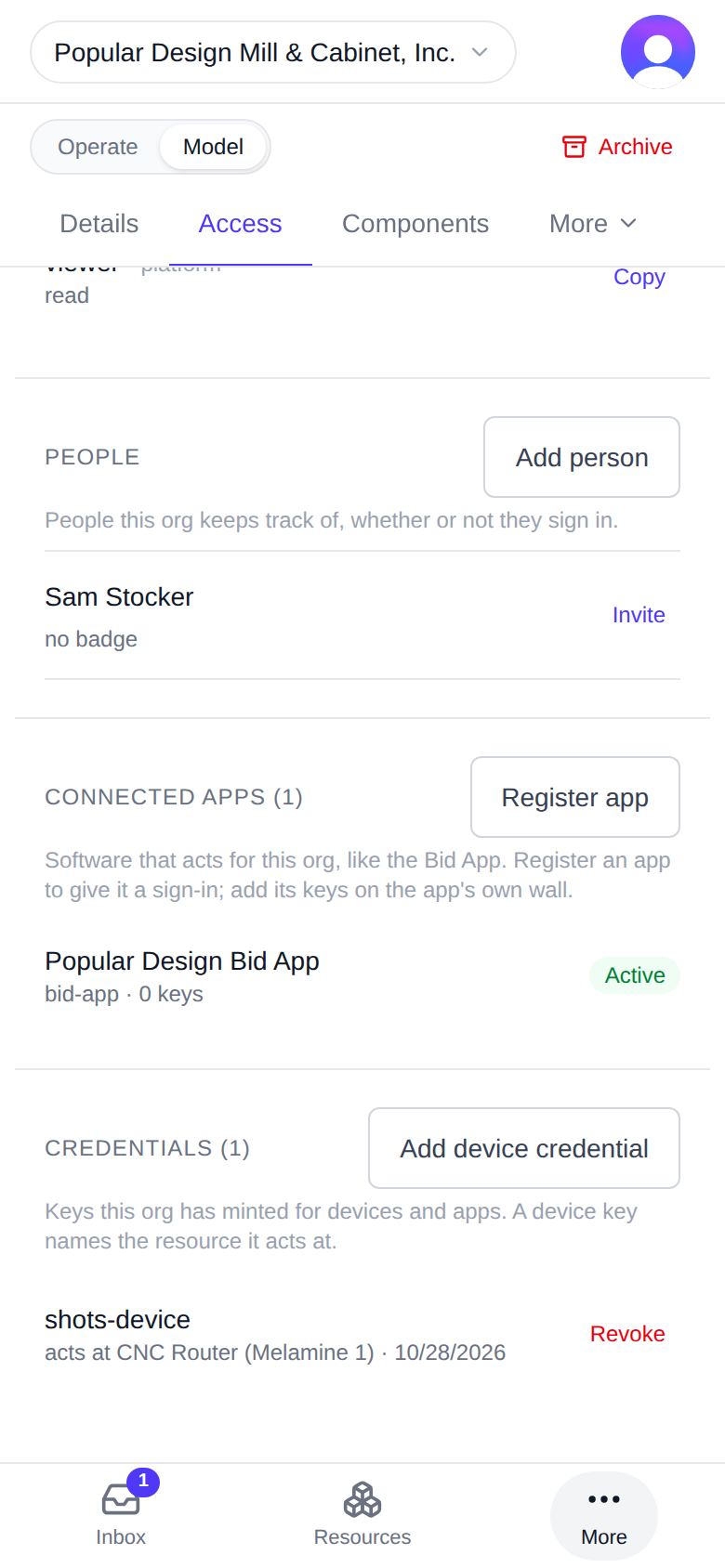
Software that acts for this org, like the Bid App. Register an app to give it a sign-in; add its keys on the app's own wall.
Register app opens a sheet asking for a Name, a Code, Redirect URIs (optional) and the Allowed types. After you register, the app has its own wall, where you manage its keys.
On a desktop
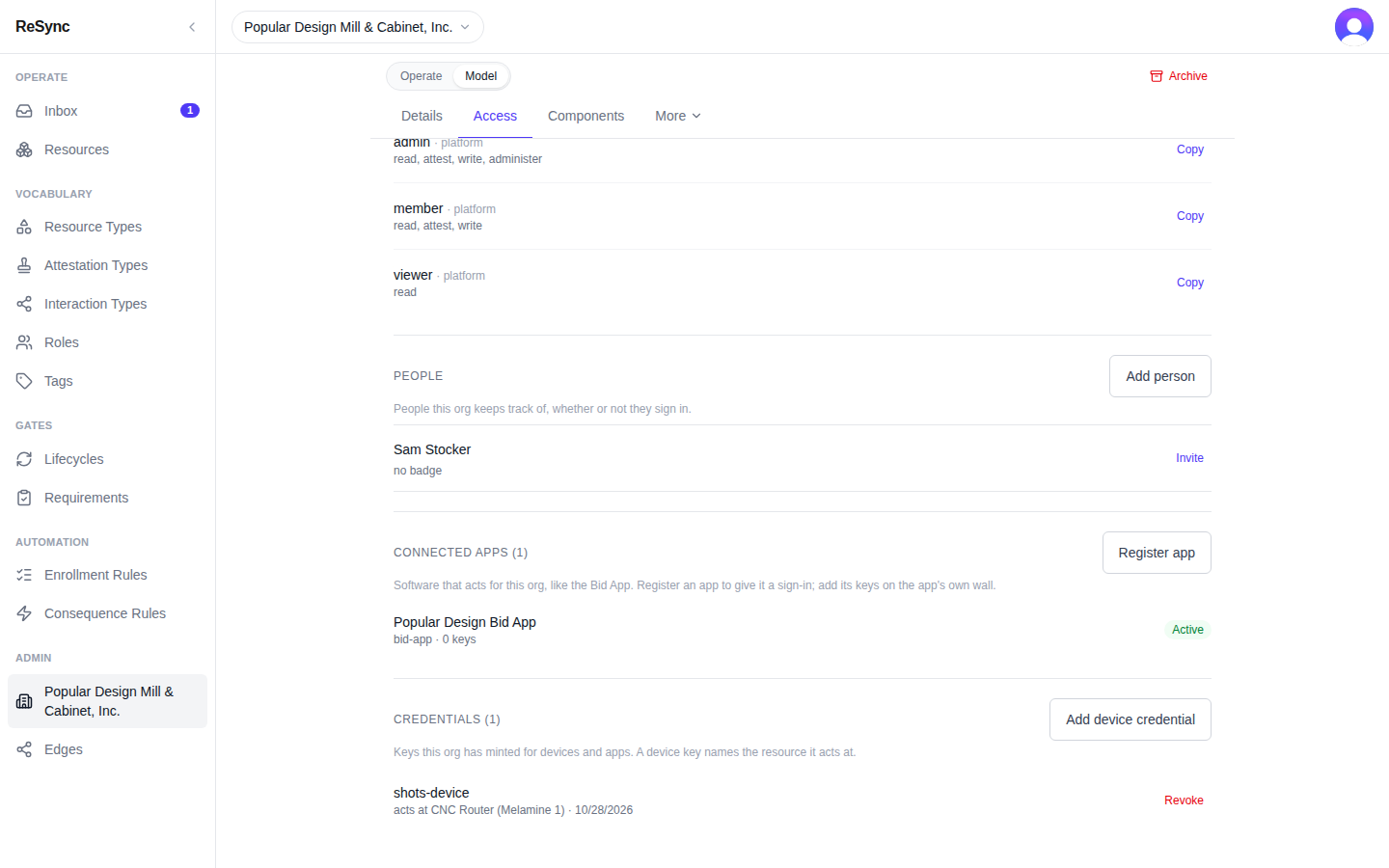
What you'll see: Connected apps ({n}) with Register app, and one row per app with its status.
Credentials
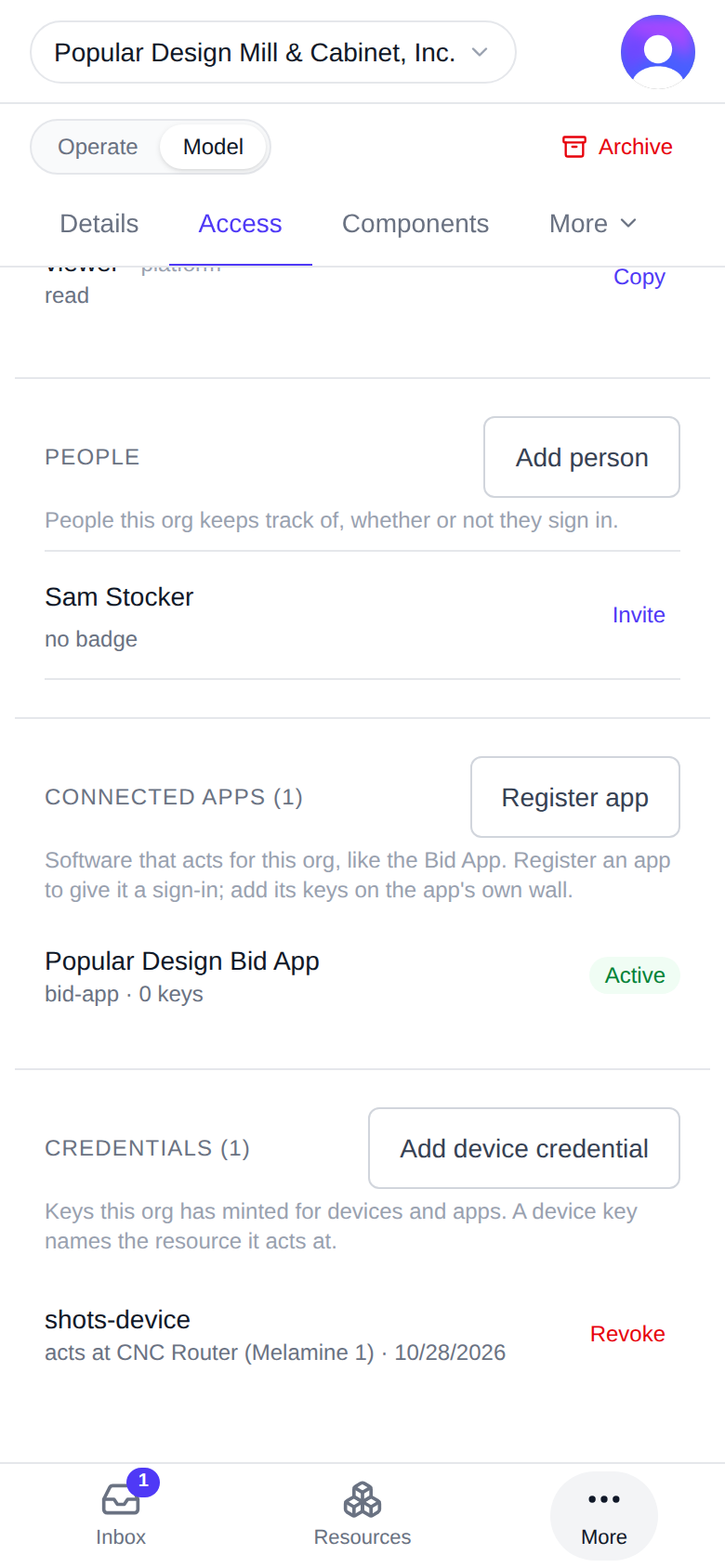
Keys this org has minted for devices and apps. A device key names the resource it acts at.
- Add device credential asks for a name and the resource the device acts at, plus "Also attests on (optional)".
- Tap Create. The Connection key appears once: "Paste this into the device's setup screen. It will not be shown again." Copy it before you tap Done.
- Revoke stops a key: "Anything using it stops working immediately. A revoked credential is never reactivated."
On a desktop
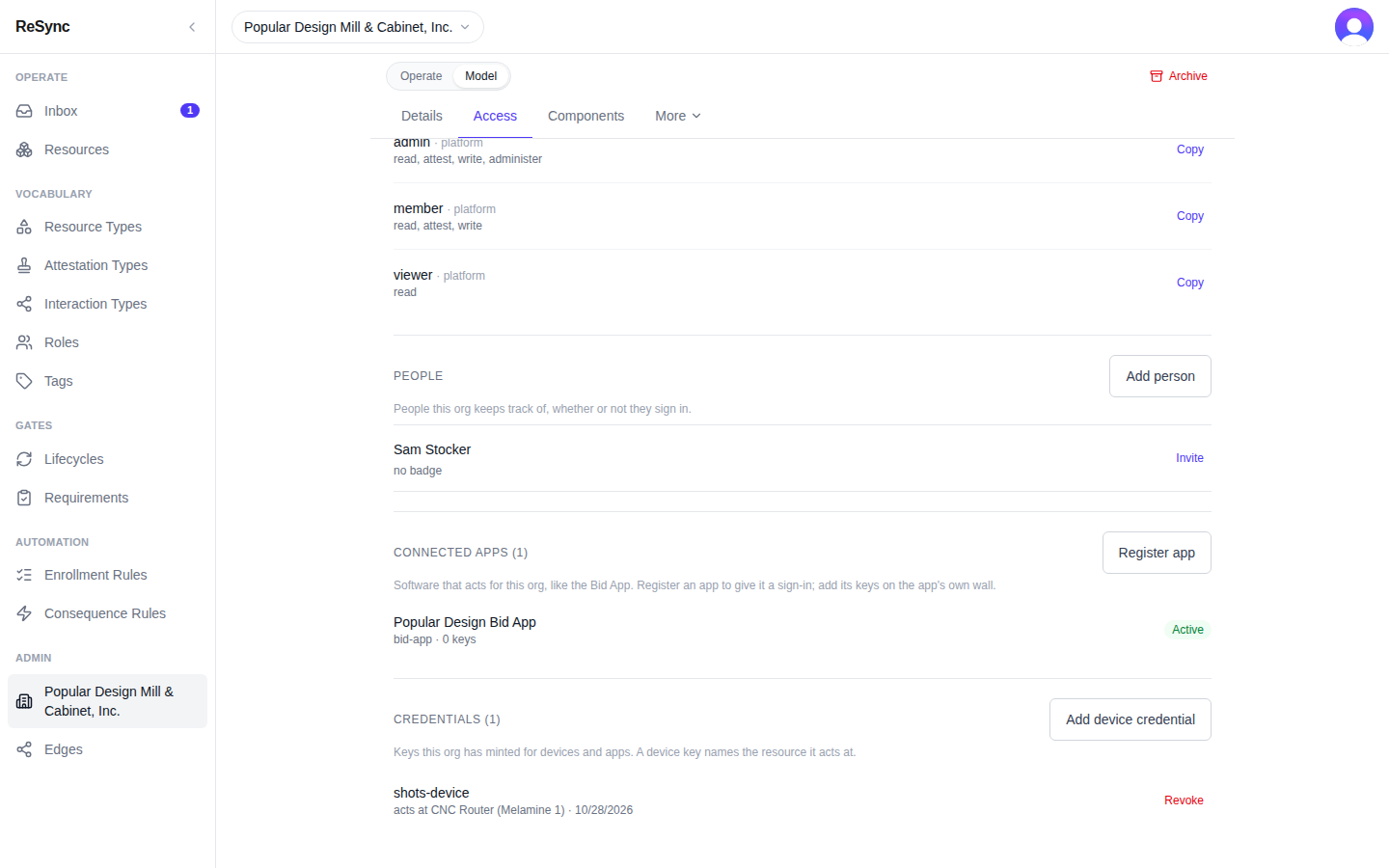
What you'll see: Credentials ({n}) with Add device credential, and one row per key with Revoke.
Where next
- A resource's wall
- Concepts
- Developers: Authentication and scopes