A resource's wall
This page covers a resource's wall: finding it, the "Operate" and "Model" tabs, and what a member can and can't do there.
Finding a resource
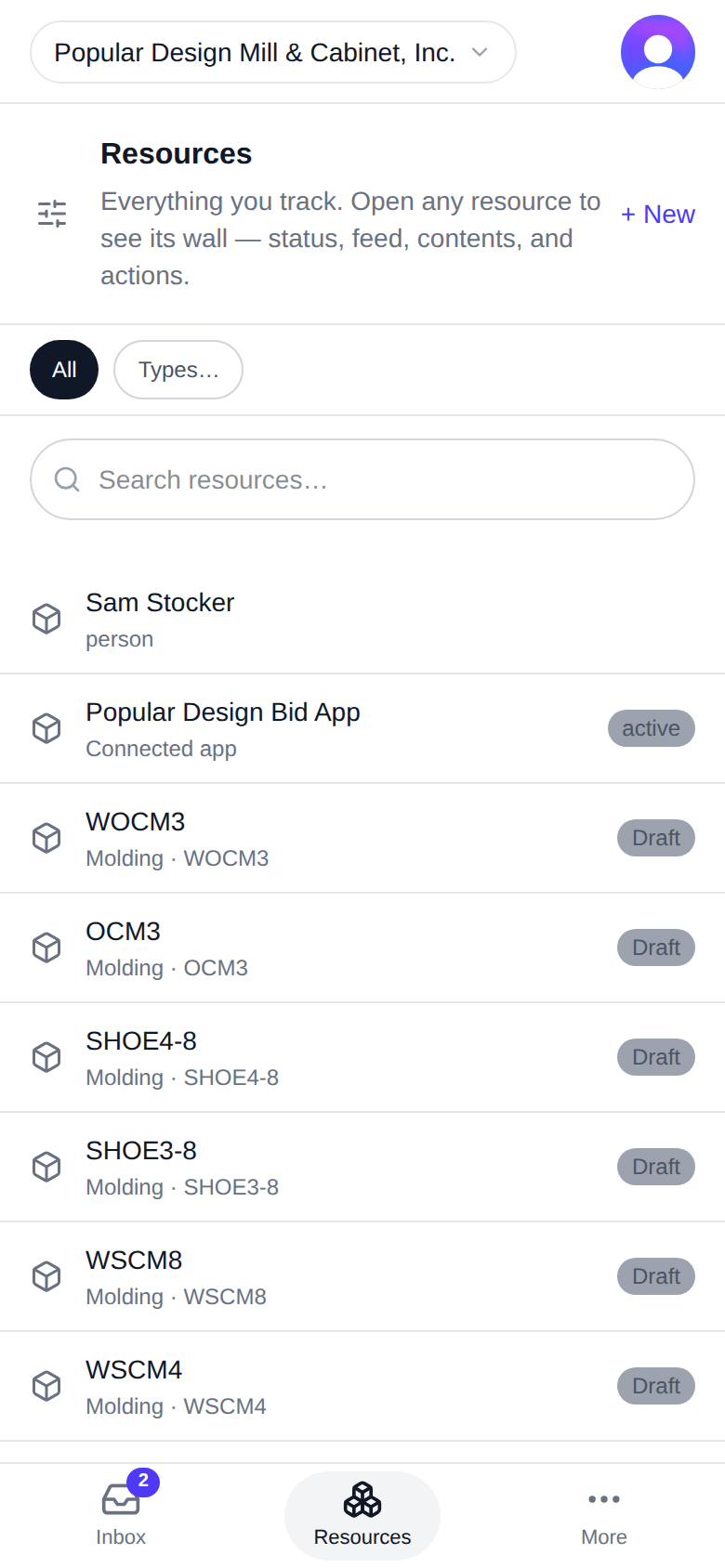
Resources lists everything you track: "Everything you track. Open any resource to see its wall — status, feed, contents, and actions."
- Tap Resources in the bottom bar (desktop: the rail).
- Type in "Search resources…" to find one by name.
- To narrow the list, tap the sliders button beside the search box. Filter & sort lets you pick a Type, a Status, the Sort order, and whether to Include archived. Tap Apply.
- Tap a resource to open its wall.
The type chips above the list (All, then the types you have pinned, and Types… for the rest) are a quicker way to filter by type.
On a desktop
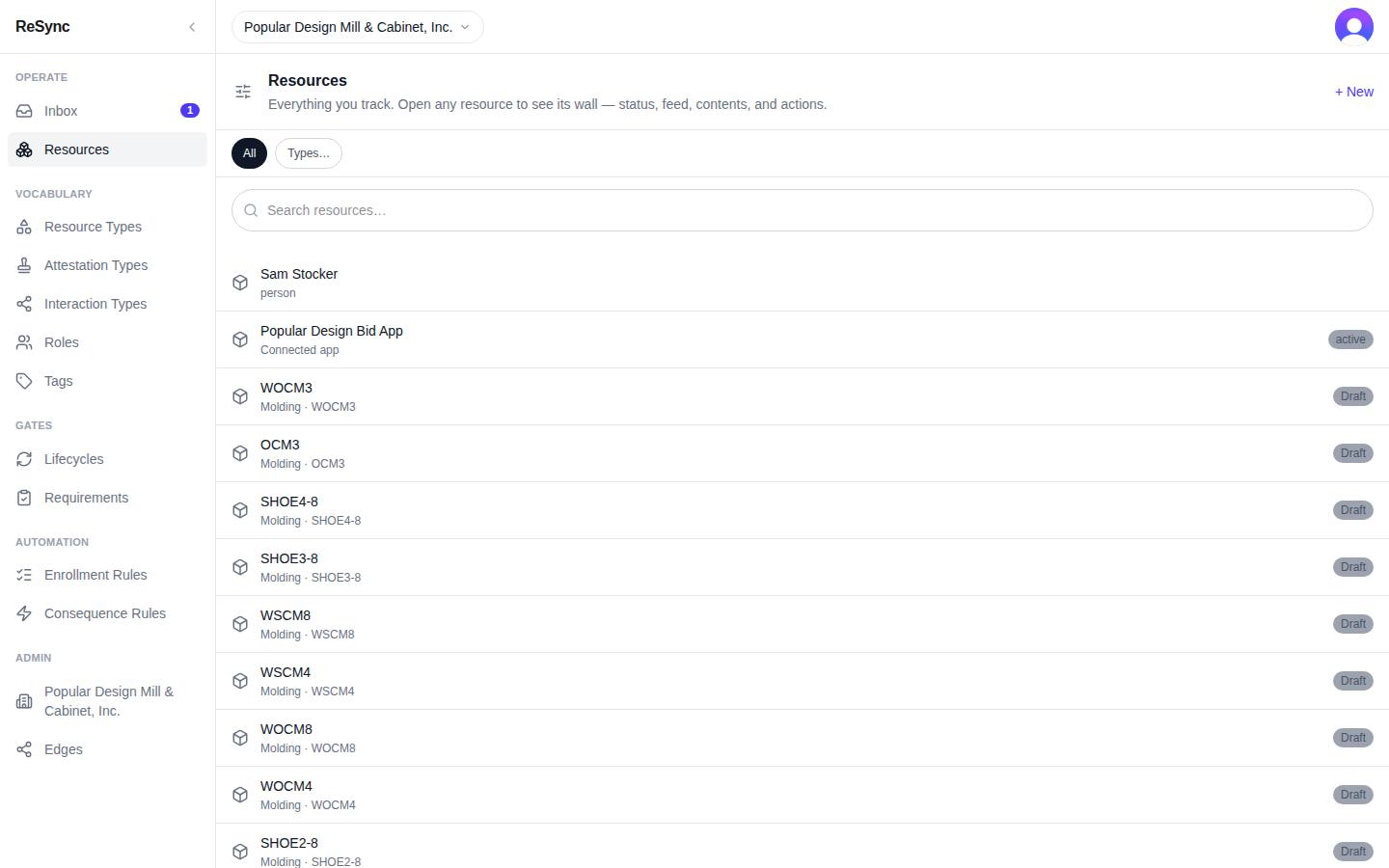
What you'll see: Resources with "Search resources…", the sliders button, the type chips, and the list. Archived resources carry an "Archived" chip.
Operate: Advance, Feed, Map, Contents
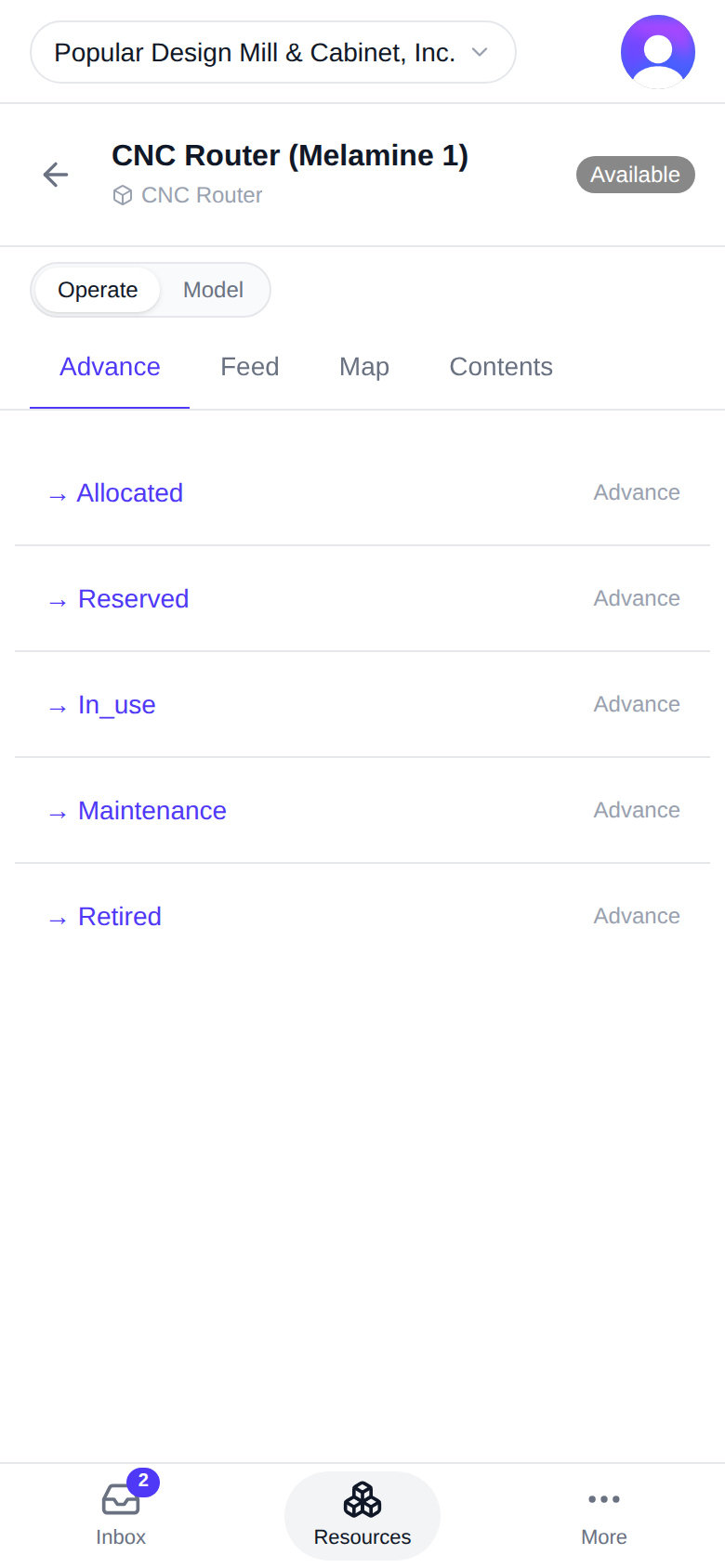
Every wall has the same header: the back arrow, the resource's name, and its type underneath. Below it, the Operate / Model toggle.
Operate tabs — a tab appears only when the resource has something to show there:
- Advance — the ways the resource can move on. Each row reads "→ {status}". A row with nothing to check ends in Advance. A row with requirements lists them, each with its own button (Attest, or the action's name), and ends in Submit — {status}. "Records: {label}" under a row means moving records that event too.
- Feed — Activity: who did what, with All / Messages / Changes and a message box. A line marked "auto" or "derived" was written by ReSync itself, not a person.
- Map — the resource's lifecycle, with the statuses it has passed through.
- Contents — what sits inside this resource. "Contained in" shows what it sits inside. Use "Search contents…" and Filters.
On a desktop
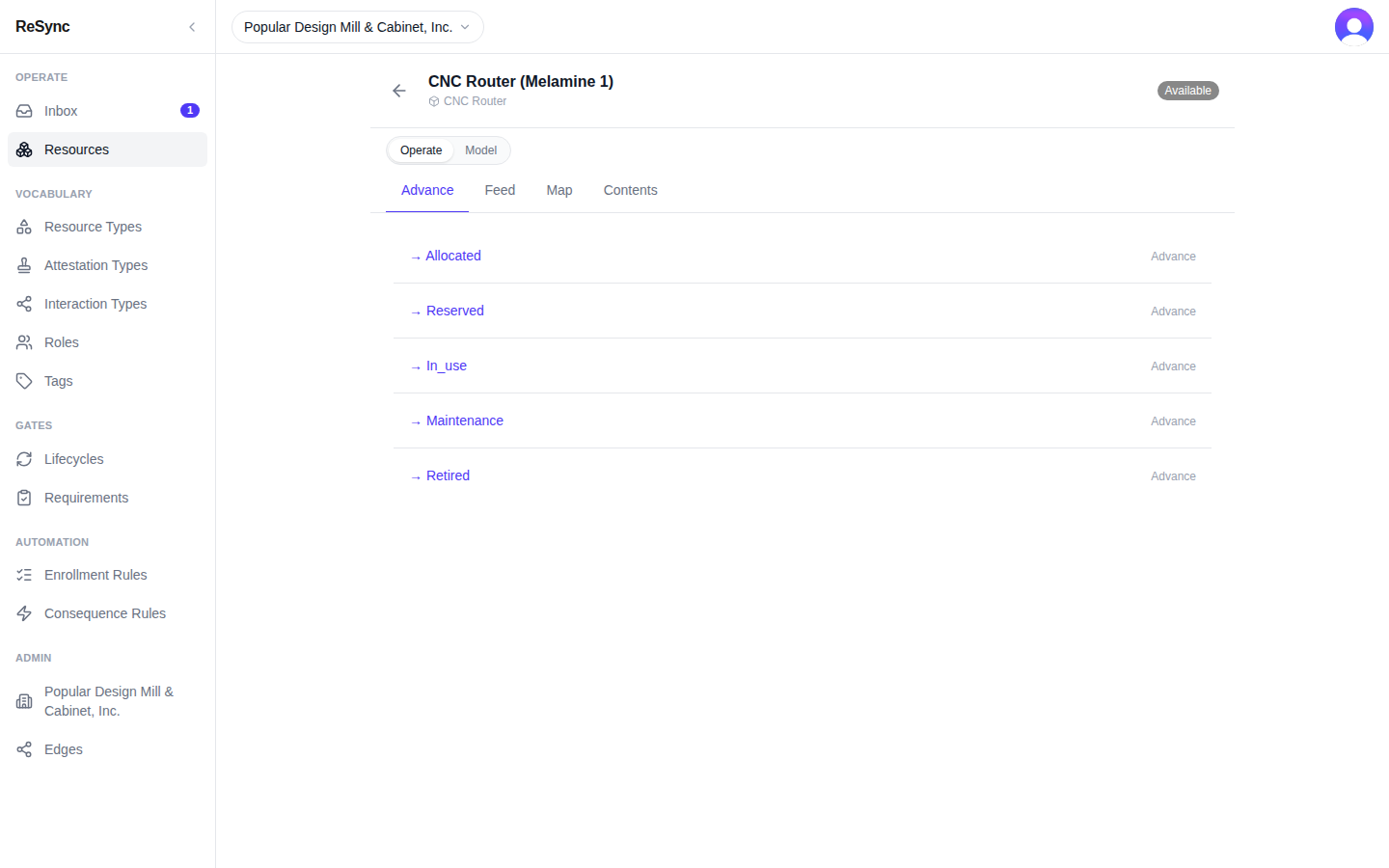
What you'll see: the header, the Operate / Model toggle, and the Operate tabs, with Advance listing rows that start "→".
Model: Requirements, Details, Access, Components, More (Canvas, Edges)
Model tabs describe how the resource is set up:
- Requirements — what must be true before each move ("→ {status}").
- Details — Identity (Name, Identifier, Resource Type, Owner, Created), Properties, Connections, Capabilities and Canvas Appearances.
- Access — who can do what here. It appears only where you have something to see — for example on your own person, or on an organization you belong to.
- Components — Enrollment rules, what is Inherited from type, and the Members placed inside this resource.
- More ▾ — Canvas (the resource drawn as a diagram) and Edges (Federation edges: trust crossings with other organizations).
On the right of the Model toggle, Archive hides a resource from lists and automation ("Archive this resource?"). An archived resource shows the banner "Archived {when} — hidden from lists and automation." with Unarchive. Its history is kept.
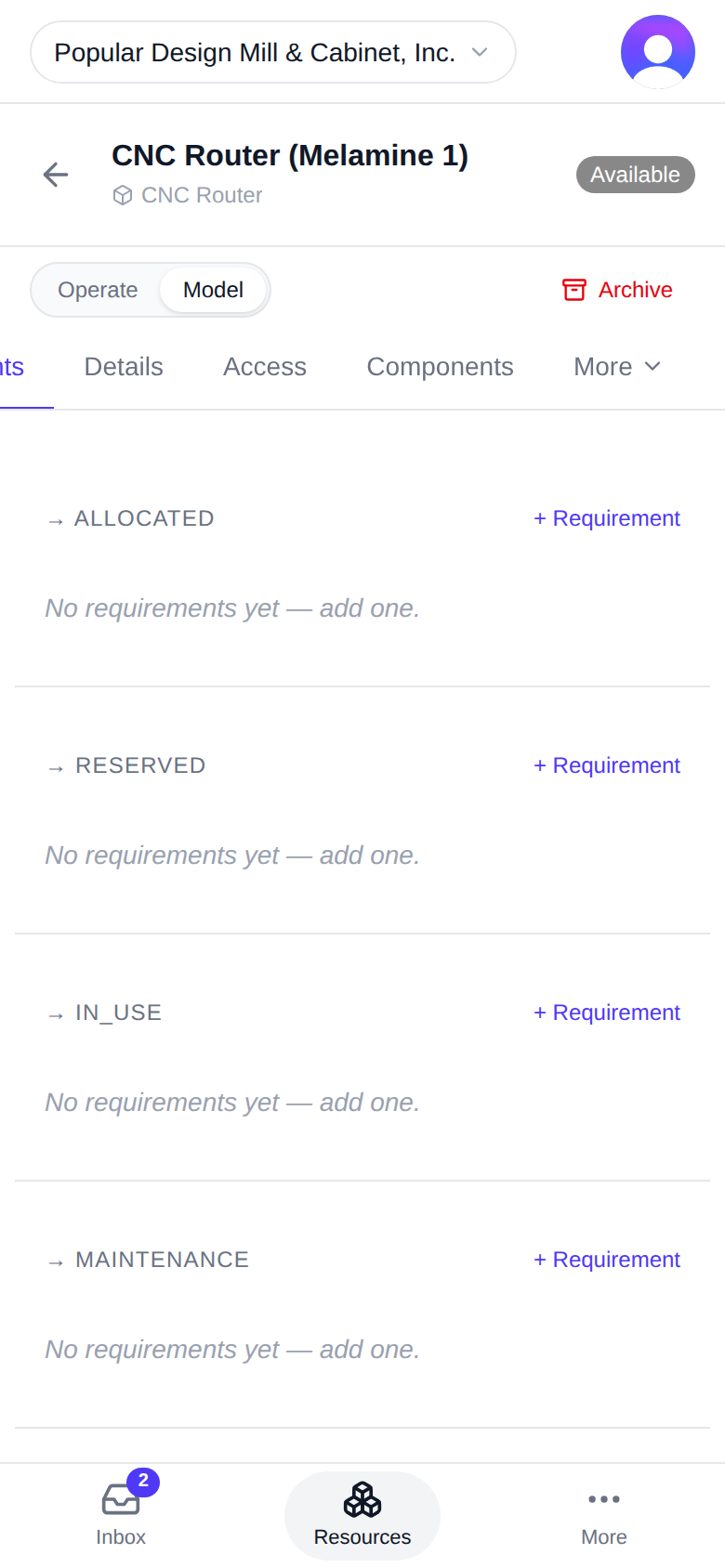
On a desktop
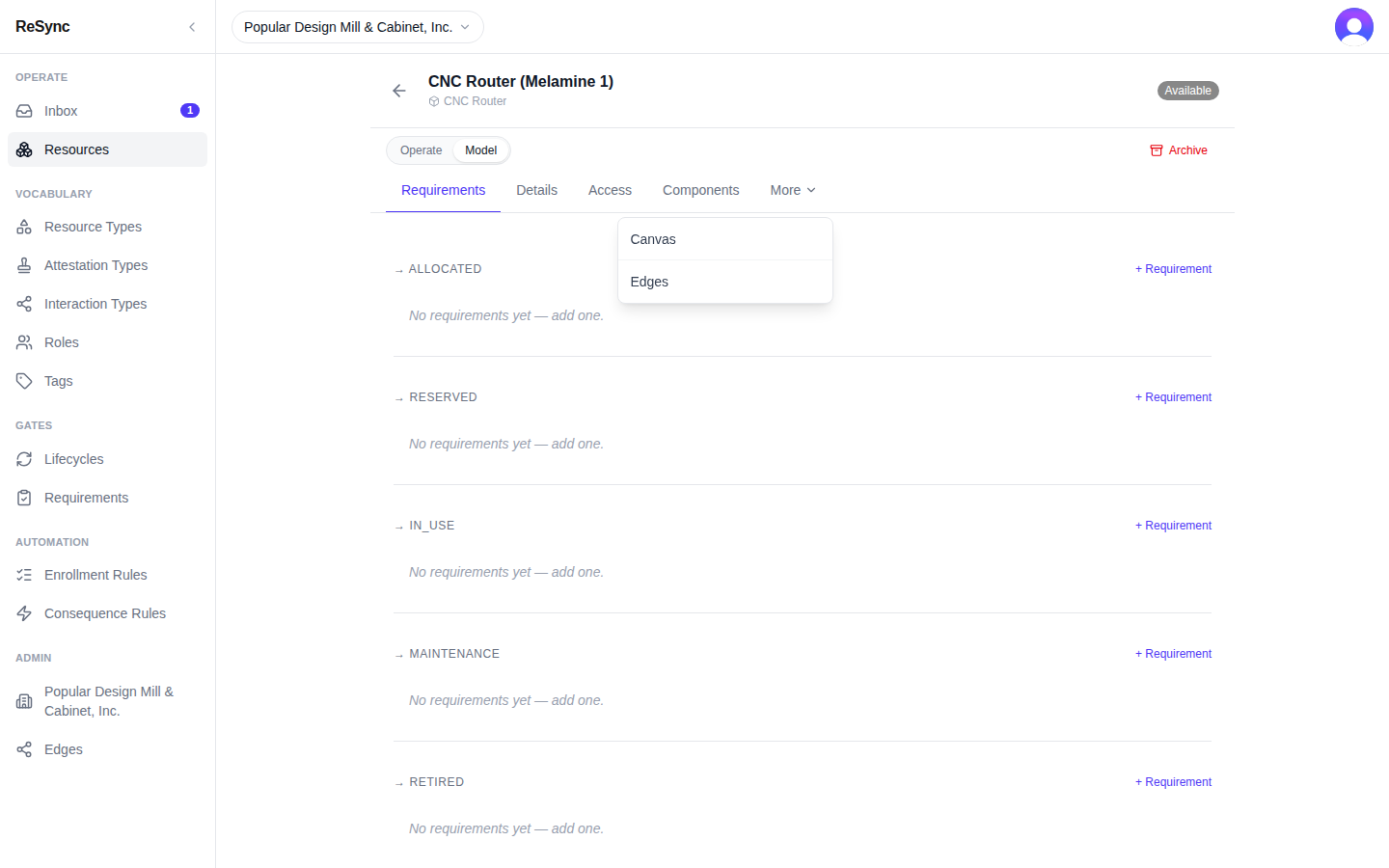
What you'll see: the Model tabs, Archive on the right, and the More ▾ menu open on Canvas and Edges.
What a member can and can't do
You can:
- read every tab of every resource your access reaches;
- post in Feed;
- attest and move a resource on where your access allows it — those rows show Advance, Attest or Submit.
You can't, and the screen shows it:
- Move a resource on without the access. The row stays grey, "→ {status}", with no Advance button and no Attest or Submit.
- Rename it or change its properties without write access. Name and Identifier are read-only and the Properties fields can't be edited. Archive does not appear.
- Administer it. The admin sections of Access (Issued, Grant sets, People, Connected apps, Credentials) do not appear; on your organization you see only the Members roster.
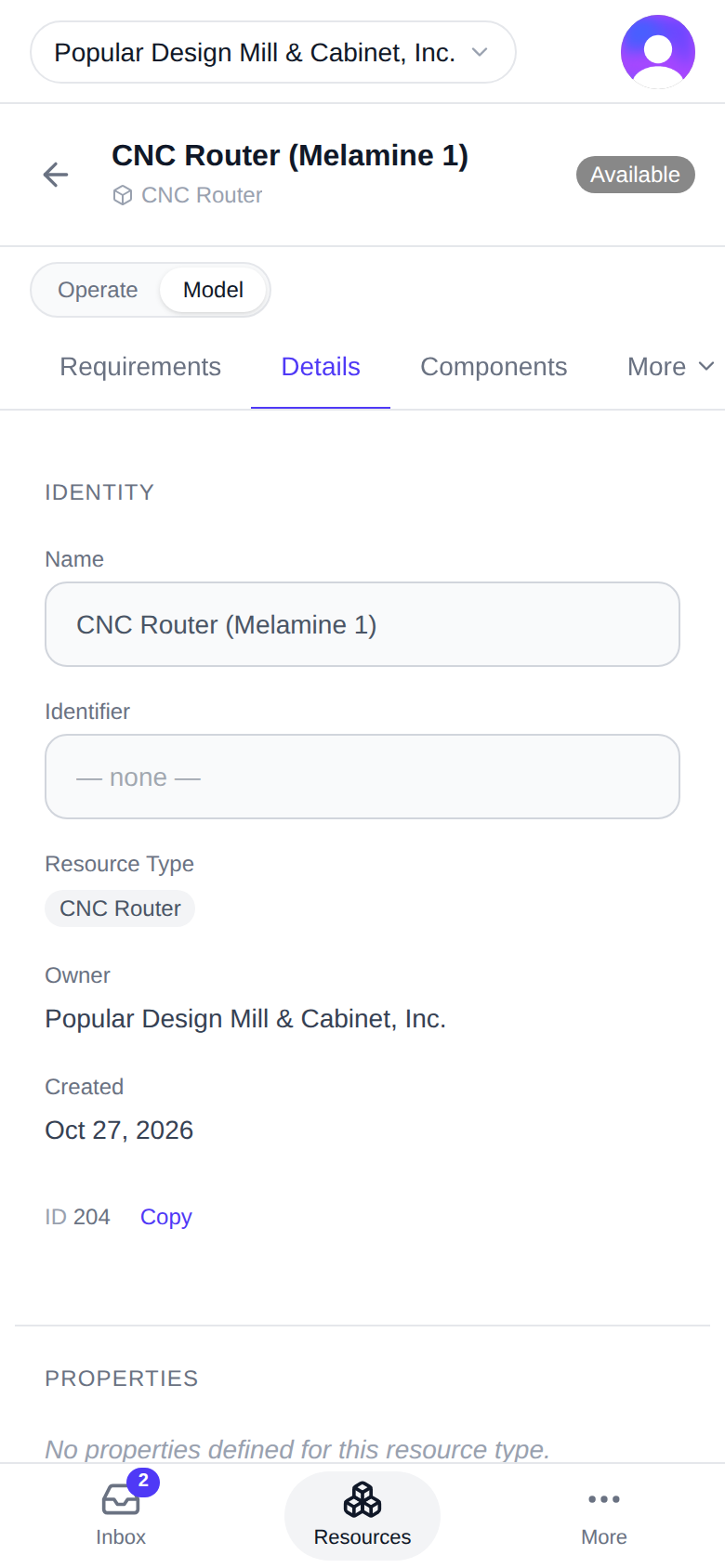
On a desktop
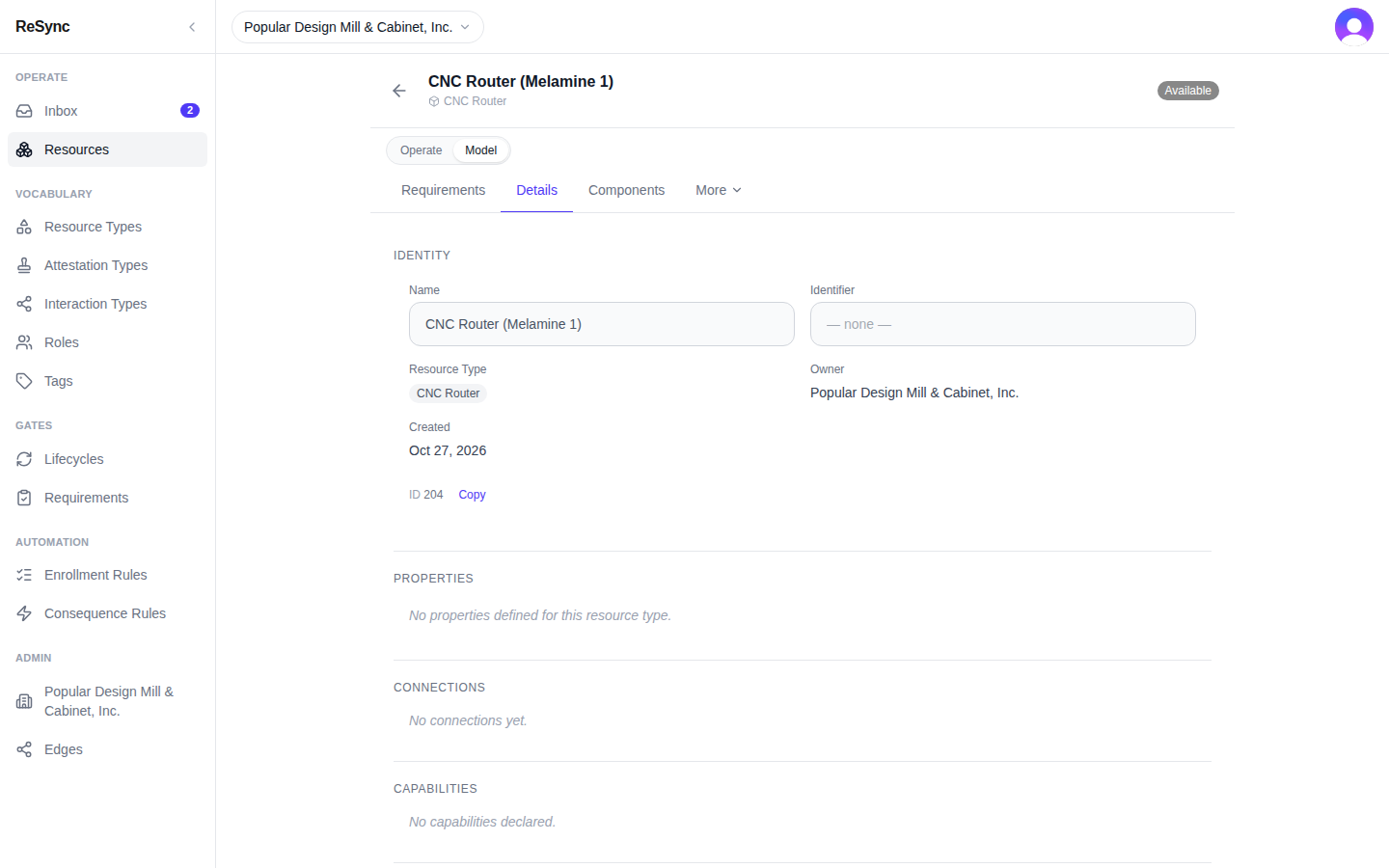
What you'll see: Identity with Name and Identifier you can't type into, and no Archive.
If you reach something you can't use, the app shows one of two messages:
- "You do not have access to this resource" — your access does not reach this resource.
- "Your access does not include this action" — you can see it, but not do this to it.
Ask an admin of the organization that owns the resource if you need more.
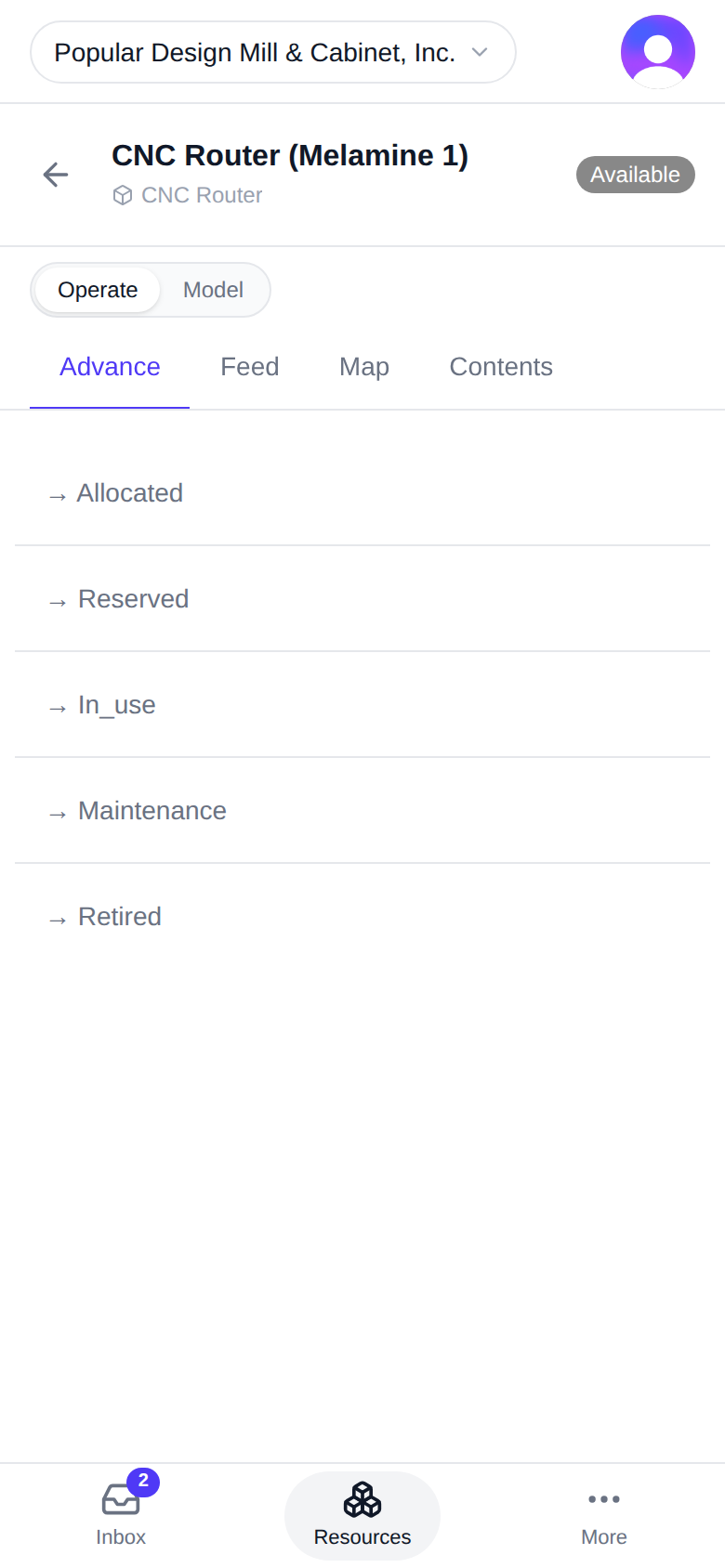
On a desktop
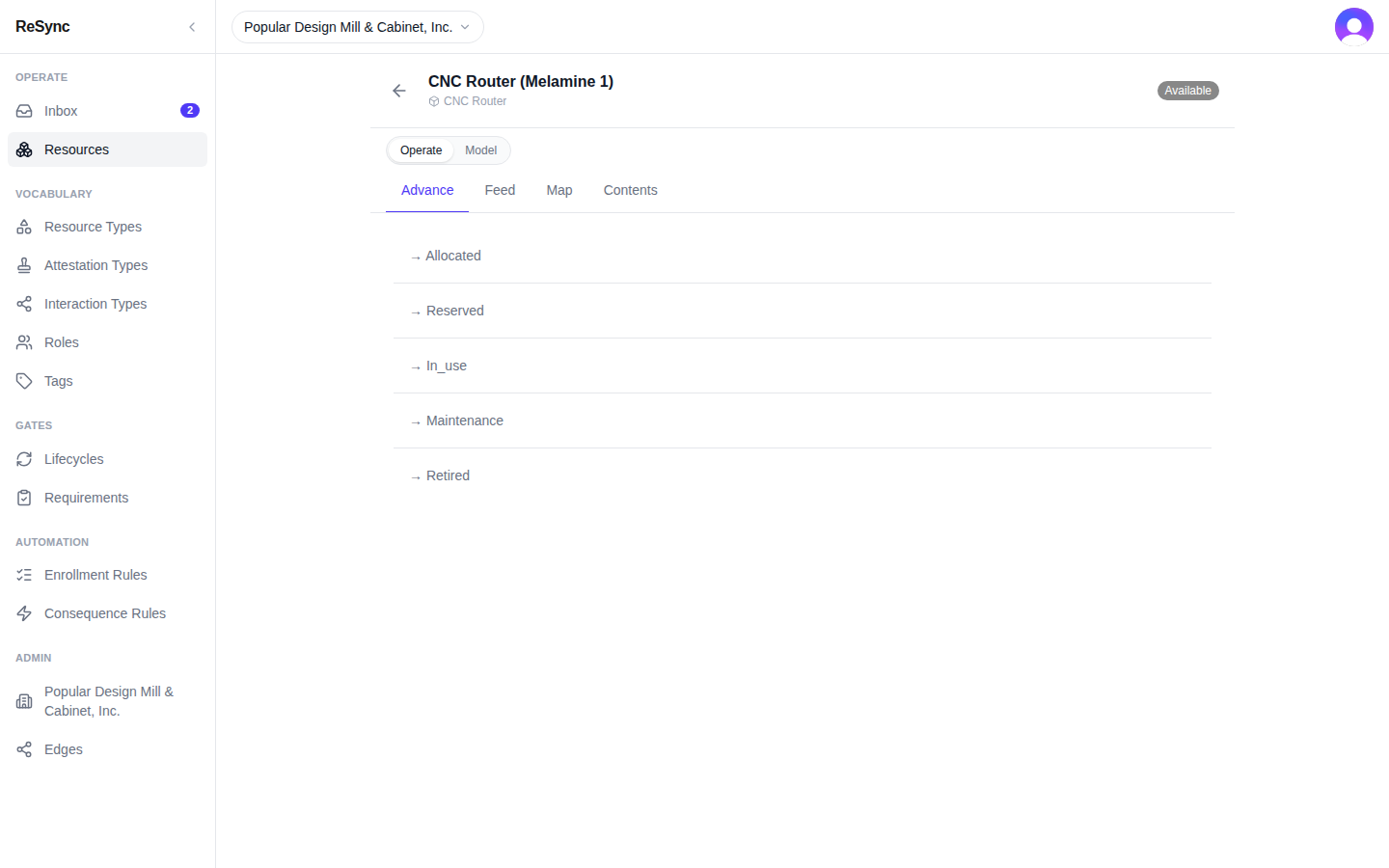
What you'll see: grey "→ {status}" rows with no Advance button.
Where next
- Resource types
- Concepts
- Developers: Endpoints