Resource types
This page covers the "Resource Types" list, how it is grouped, what a type carries, and how to open one.
The Resource Types list
Every resource has a type — the kind of thing it is. The Resource Types list shows the types you can use.
- Tap More in the bottom bar (desktop: the rail).
- Under Vocabulary, tap Resource Types — "The kinds of things you track, and what they carry."
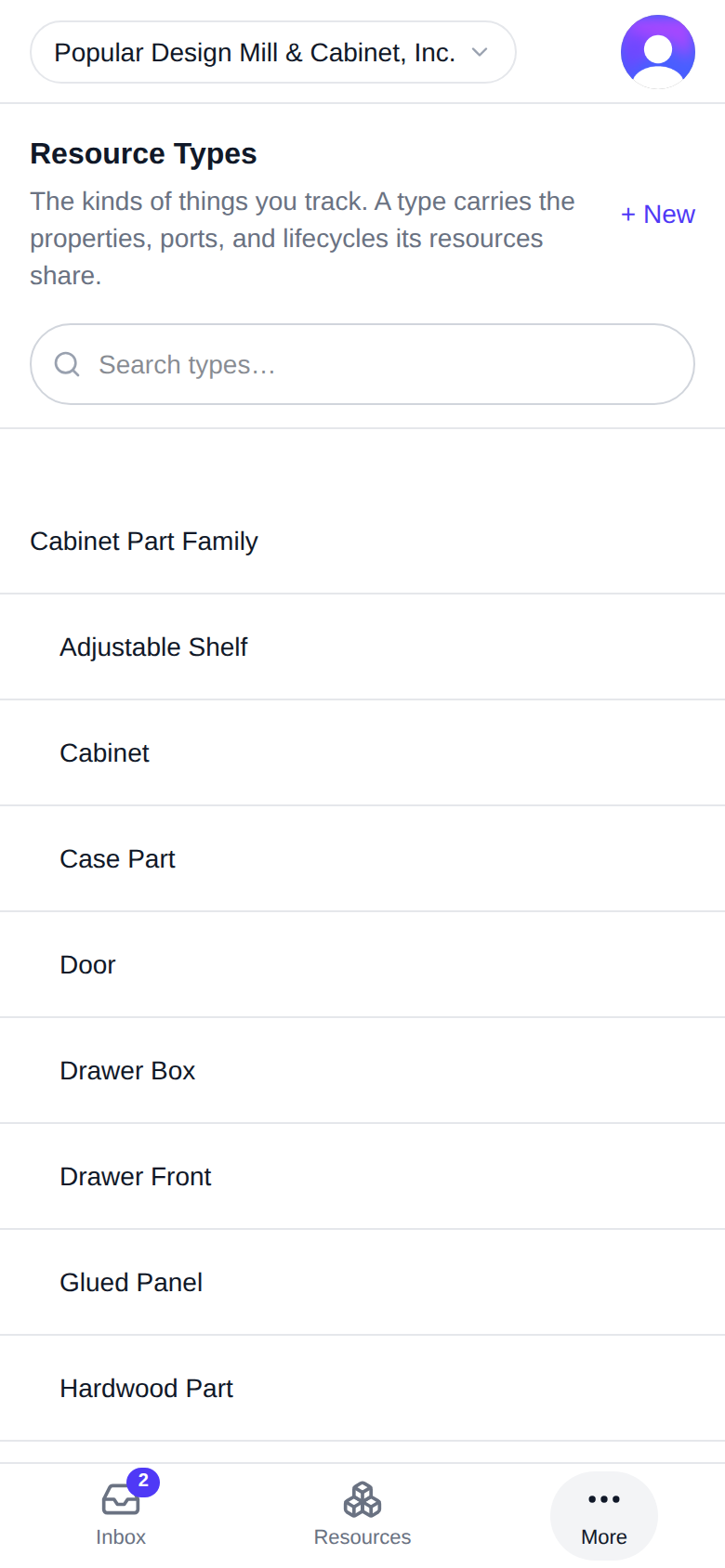
At the top of the list: "The kinds of things you track. A type carries the properties, ports, and lifecycles its resources share." Type in "Search types…" to find one by name.
On a desktop
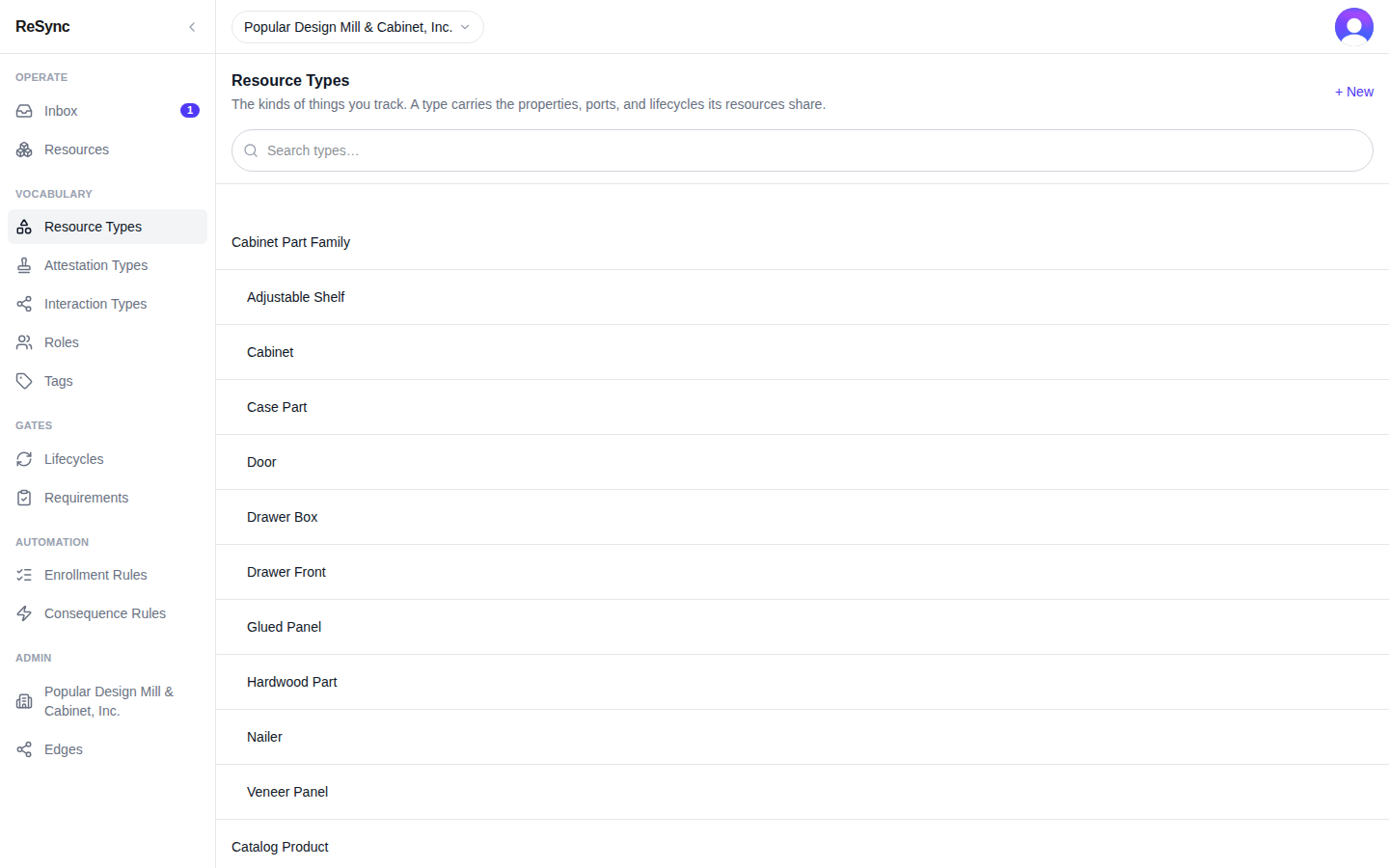
What you'll see: Resource Types with its one-line description, "Search types…", and the list of types.
Workspace, Platform, System groups
The list comes in three parts:
- Your workspace's types come first, with no heading. These are the types your organization (or your personal space) has declared.
- Platform — types every organization shares, such as Person and Organization.
- System — types ReSync uses for its own pages, such as Canvas.
Which types are in the first part depends on the workspace you picked in Switch workspace.
What a type carries
Each row shows the type's name, with its description after it if it has one. A type that extends another is indented under it. A globe beside the name marks a "Global type" — one no single organization owns.
A type carries what its resources share:
- properties — the values each resource of that type holds;
- ports — the connections it can make to other resources;
- lifecycles — the statuses it moves through, and the moves between them.
Opening a type
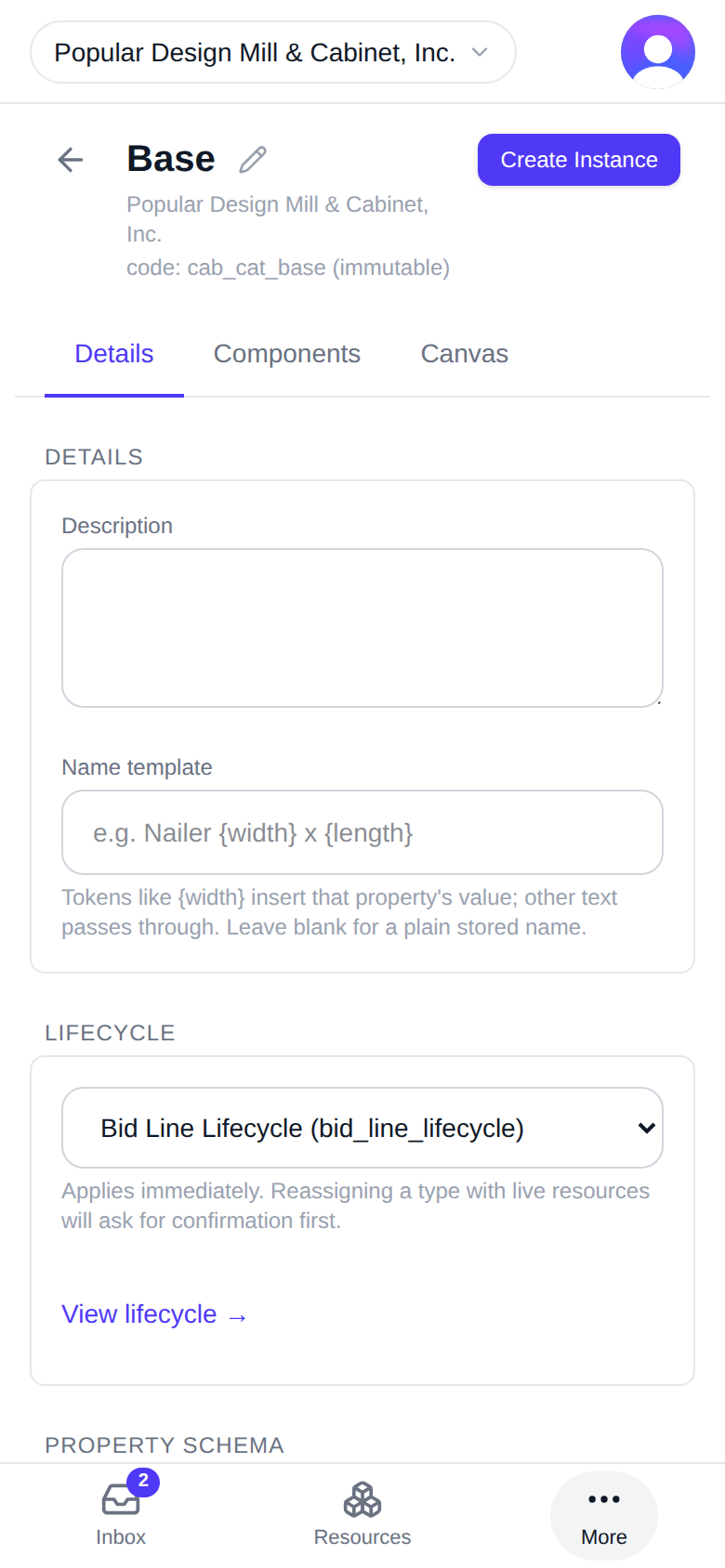
Tap a type to open its wall. At the top:
- the back arrow and the type's name;
- the owner — your organization's name, or "Personal";
- "code: {code} (immutable)" — the type's short code, which never changes;
- Create Instance, which makes a new resource of this type (it appears only where your workspace can create).
Below the header are three tabs: Details, Components and Canvas. Details holds these sections:
- DETAILS — the Description and the Name template: "Tokens like {width} insert that property's value; other text passes through. Leave blank for a plain stored name."
- LIFECYCLE — the lifecycle this type runs, if any: "Applies immediately. Reassigning a type with live resources will ask for confirmation first." View lifecycle → opens it.
- PROPERTY SCHEMA — the values each resource of this type holds: INHERITED PROPERTIES from the type it extends, then OWN PROPERTIES.
- CARD — the icon and the "Key properties on the card": "Up to three, in this order."
- EMISSIONS — "Event types instances of this type may emit".
- PORTS — "Connection points on this type. Existing instances adopt new ports automatically".
- COMPATIBILITY — Compatibility rules: which resources may connect to which.
Components lists the enrollment rules this type owns. Canvas draws the type as a diagram.
A system type — most Platform types, and Canvas — says so at the top of Details: "System resource types are read-only. These are managed by ReSync and cannot be modified."
On a desktop
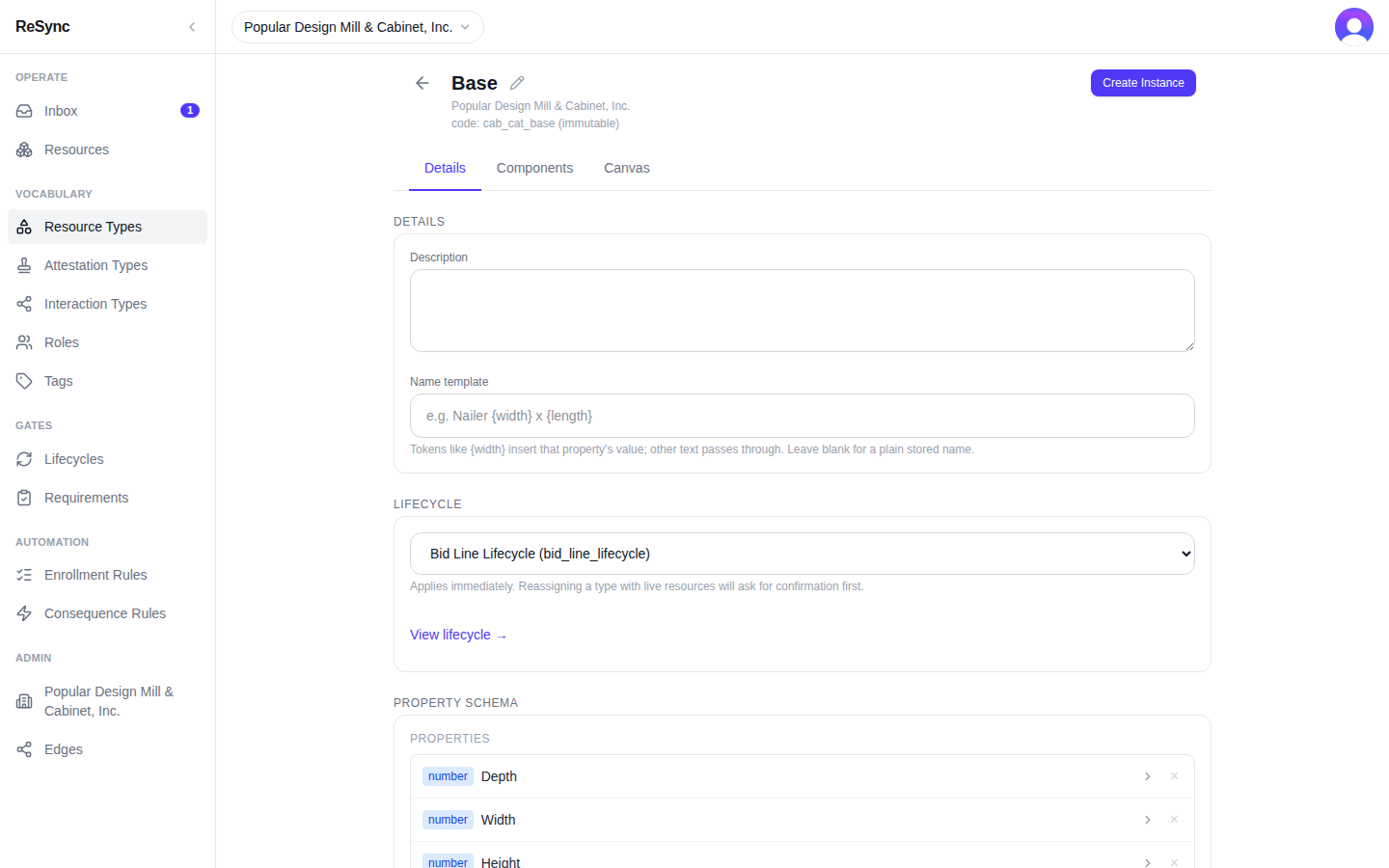
What you'll see: the type's name, its owner and "code: … (immutable)", Create Instance, the Details / Components / Canvas tabs, and the DETAILS section first.
Changing a type changes every resource of that type, so it needs the right access on the type. As a member you can open and read any type in the list. If you try a change your access does not cover, the app answers "Your access does not include this action" and nothing changes.
Where next
- A resource's wall
- Concepts
- Developers: Endpoints